What this guide helps you do
Use the live order queue, inspect a customer's full order, and follow the correct next actions for delivery, pickup, dine-in, bank payment, or reservation.
Incoming order alerts and their notification history are in Krobr Partner. Use Notifications (More on a phone) for the all-store inbox. For repeated device alerts from Partner and Orders, follow device linking.
Use Notification devices in the alerts settings to review registered apps and store coverage. Send test alert checks sending to the current app; Repair notifications renews its setup. The launch banner’s Enable button opens the native permission prompt after your tap. See notification devices and troubleshooting.
Before you start
You need View submissions to read orders and Manage submissions to change them. Check the store, device connectivity, and whether order alerts are enabled. A draft is not a placed order.
Where to find it
Partner → Orders, or that store's focused Orders app. On a phone use Orders at the bottom; additional filters are in its search/filter controls.
Step by step
-
Open Orders and review the live New/active/past groups available for the store. Every tab shows a count, including Past's total history. Counts below 1,000 are exact; larger counts use K/M/B/T, such as 1K or 1.2K. Past lists the latest 25 orders; search to find older ones. A new-order alert is a prompt to inspect, not proof that staff already accepted it.
-
Search by order # or customer name. Use status, method, date, and other offered filters; clear them if an expected order is missing.
-
Open an order card/row. Read the order number, fulfillment method, customer details, unit-level options, notes, fees, discount, and payable amount.
-
For a new order, choose Accept or Reject where offered. Set the preparation/ETA value when requested and give the required reason when rejecting.
-
For bank orders, inspect/verify payment before using payment confirmation. For reservations, explicitly approve or decline the requested slot.
-
Continue with the method's offered next action: preparing, ready for pickup, out for delivery, completed, or the corresponding reservation action. Do not assume every method has every status.
For a shop pickup, choose Mark packed, then Mark ready for pickup when the order can be collected, and Mark picked up after handing it to the customer. These actions do not ask for a courier, tracking number, or delivery date.
-
Use Print for a ticket and the offered Call/WhatsApp links when communication is needed. These links open the relevant device app.
-
Continue as soon as the card and its next action update. The queue, tab counts, payment state and open ticket update immediately while the change saves on this device and syncs in the background. If another staff member changed the order first, review the conflict before continuing.
-
Check the order's final state and the customer status page. Search Past/history when a completed order leaves the active queue.
-
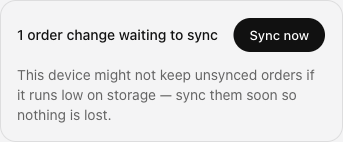
Monitor the pending-change count and connection notices. Use Sync now to retry. A conflict stays visible until you retry it or confirm Use latest order to discard that order's pending changes.
Keep working offline
Open Orders online once to load the queue and tickets on this device. If the connection drops, keep accepting, preparing, confirming verified payments and completing the loaded orders using their offered actions. A new counter order also appears in the local queue immediately. You can take several steps on one order without waiting for the server.
Changes are saved on this device and survive a reload. Keep using the same signed-in account and browser, and keep browser data until the pending count clears. Reconnection, returning to the app and its periodic retry send each order's changes in sequence. Counter orders are created on the server first, then their queued status changes follow.
The customer's tracking page, other devices and reports catch up after sync. Older orders and tickets that were never loaded still need an online read. If device storage cannot save a change, it is reverted and an error appears: free storage and retry before moving on. A validation, permission or other-staff conflict pauses that order's changes while other orders continue.
Understand the choices
-
Final orders retain their submitted product and price snapshots. Editing today's catalog does not rewrite yesterday's ticket.
-
The workflow is method-specific. Pickup can become Ready for pickup; delivery can become Out for delivery; reservations require approval.
-
Shop pickup progress reads Order placed → Packed → Ready for pickup → Picked up. Packed means preparation is finished; wait until the order is ready for collection before marking it Ready for pickup.
-
View-only members can inspect but cannot change status. A disabled/missing action can also mean the current order state no longer permits it.
-
Auto-rejection applies only to applicable unaccepted new orders under the store's configured timing; reservations are explicitly reviewed, not automatically approved or completed.
-
Payment state and fulfillment state are different. Marking an order complete is not a bank-transfer verification shortcut.
A new order plays one prominent sound burst while this app is open and audio is allowed. An authorized owner/staff push names the store, describes the order and opens its exact detail. Phone push tone and volume follow device settings.
Check the result
The active queue, order detail, and customer's tracking page reflect the accepted action, and completed orders remain searchable in history.
If something goes wrong
-
Order missing: clear filters, check the store/date window and Past/history, then search its number.
-
Action rejected as stale: another actor changed the state; reread it before retrying.
-
No status controls: ask the owner for Manage submissions rather than using another person's login.
-
Old prices differ from today's menu: use the order's stored snapshot when fulfilling that order.
Support partner access
Assigned support partners start with Orders set to View. Reading orders does not permit creating, editing, accepting, preparing, fulfilling, canceling or changing payment status. Ask the owner to choose Manage before handling orders.
Screenshots
These screenshots use demonstration data. Your names, amounts and available controls may differ. Current values on your own screen take priority.

Every stage shows a count. This example shows 1.2K new orders and 1.2M past orders; the Past list still displays the latest 25.
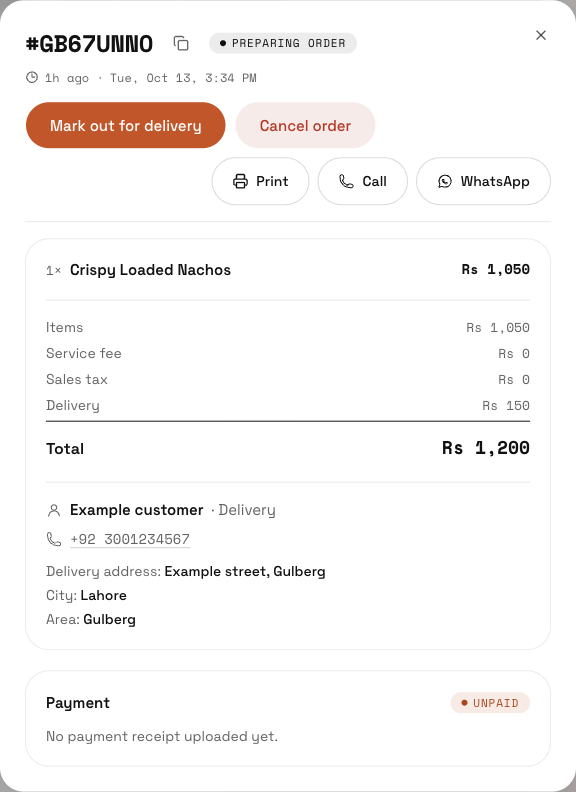
Find, accept, prepare, and complete orders in Partner: find the controls in this example screen and follow the numbered instructions above.