What this guide helps you do
Find each update in its own Krobr app and link notification apps on one device to avoid repeated push alerts.
Before you start
Sign in. Store updates require current access to that store and its relevant section. Push needs a supported browser, device permission and an installed app on iPhone. Enable push separately in each app before linking it.
Where to find it
- Workspace → Notifications (Alerts on the phone tab bar, or More): account activity, billing, package and usage reminders, custom-domain updates, invitations, and updates about orders you personally placed as a customer.
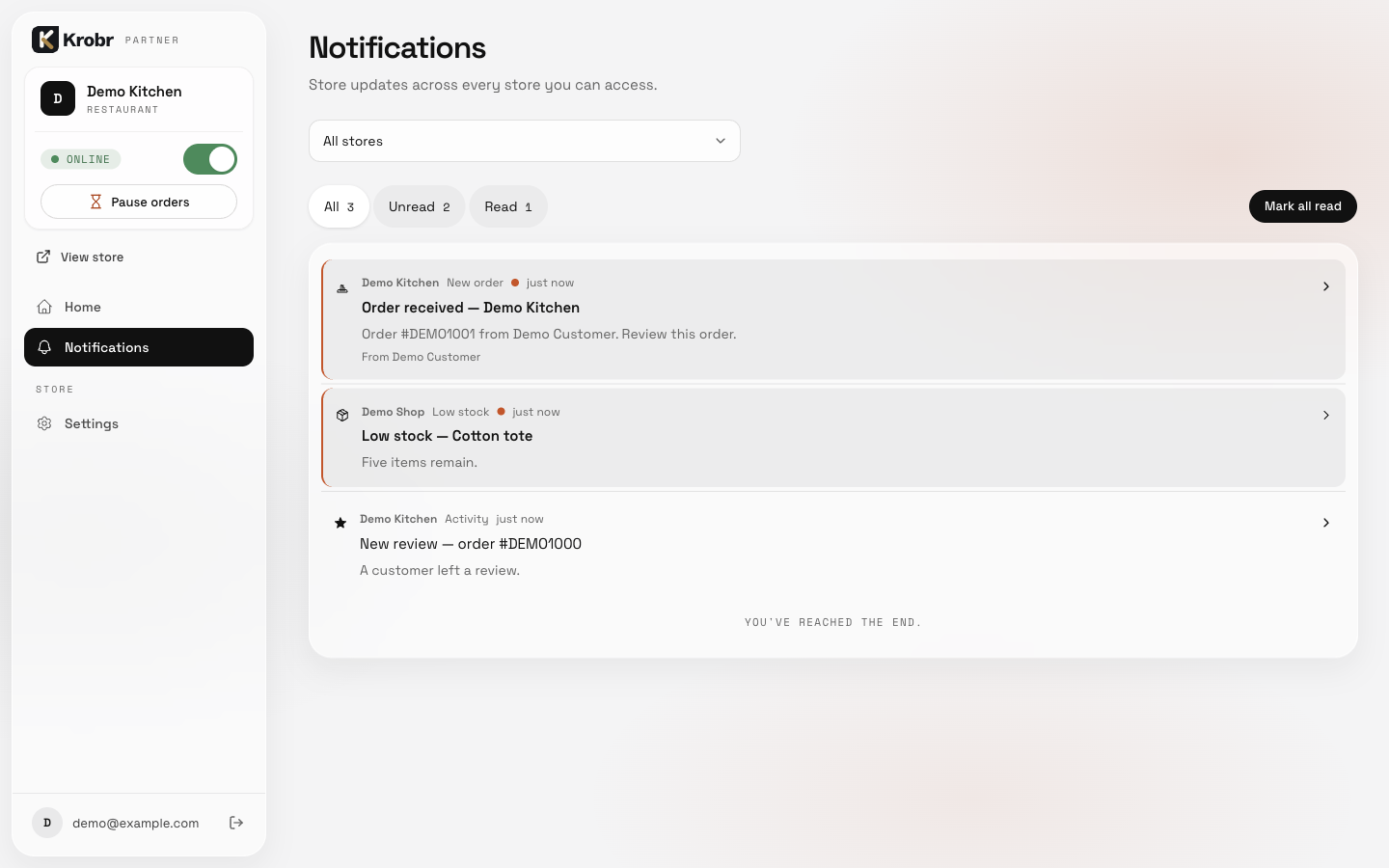
- Krobr Partner → Notifications in the navigation, or More → Notifications on a phone: incoming store orders, reservations, customer change requests, reviews and stock alerts.
- Affiliate requests, earnings, payouts, email and platform notices stay in their relevant workspace areas. An admin's workspace inbox contains their own recipient notices; authorized store history is in Partner.
Partner opens All stores by default. Its store filter covers the stores you can currently access. Order and product links open their matching operational screen; reviews open Reviews. Your personal customer orders remain in workspace order tracking.
Step by step
- Open Notifications in the appropriate app.
- In Partner, choose All stores or a particular store.
- Use All, Unread or Read to filter the list.
- Open a notification to mark it read and view its destination. Mark all read applies to this inbox and, in Partner, the selected store filter.
- Check the actual order, stock or billing screen before acting. Reading an alert does not accept an order or pay an invoice. Reading another owner's store history does not clear their unread alerts.
Understand the choices
A store update is retained in Partner's inbox rather than copied into the workspace inbox. Its order still appears in the working order queue. A later status change is a new event.
Enable device alerts
Open Push notifications in Settings, Partner's Notifications page, or the focused app's Alerts control. Turn the switch on and allow the browser/device prompt. On iPhone, install through Safari first, then open the installed app before enabling notifications. Permission is requested only after you choose to enable it.
Workspace push covers account and personal customer-order updates. Partner push covers store operations. A focused Orders or Stock app receives only its own store's relevant events. A storefront subscription receives only your customer-order updates for that storefront.
A banner at the top of the app appears on launch when alerts are off or need attention. Tap Enable notifications, then Allow in the native system prompt. A dismissed banner can return on a full app reload. The browser requires this tap; Krobr cannot force the native permission dialog to open on load or override denied permission.
Check notification devices and sending
- Open Settings → Notifications in the account app or Notifications on your devices in Partner. Orders and Stock have the same controls in their Alerts dialog. Partner’s Notifications page also provides these controls.
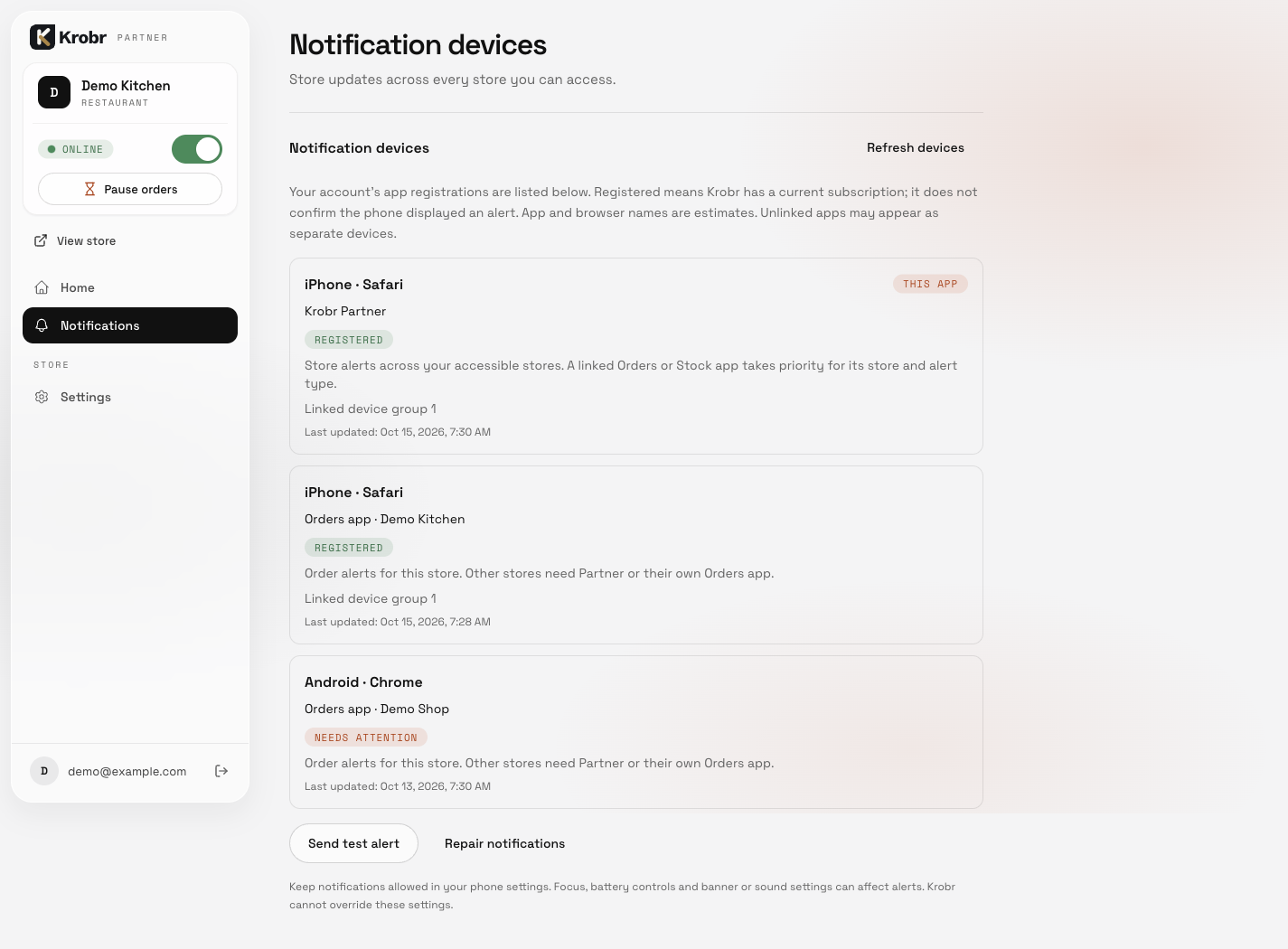
- Review Notification devices. Each entry shows an estimated phone/computer and browser, its app, store coverage, linked group and last update. This app identifies the current exact registration. Registered confirms a current subscription, not phone delivery. An unlinked app may be another registration on the same physical phone.
- Needs attention means the registration, session or store permission needs checking. Open that app, sign in and enable alerts again. A focused Orders app covers one store; use Partner for other accessible stores or enable their own Orders apps.
- In an enabled app, choose Send test alert. Look for a generic Krobr update on that device. The test targets this app only and adds nothing to either inbox. A success message means the push service accepted it; it does not confirm that the phone displayed it or played a sound.
- If the registration was rejected, choose Repair notifications, then test again. If sending succeeds but neither iPhone nor Android displays the alert, check the phone’s notification/banner settings, Focus, connectivity and battery controls. If alerts remain missing, give support the store and time of a missed order.
- Not configured means the environment’s sender is unavailable. Contact Krobr support; repeatedly allowing browser permission cannot repair the server configuration.
Link apps on the same device
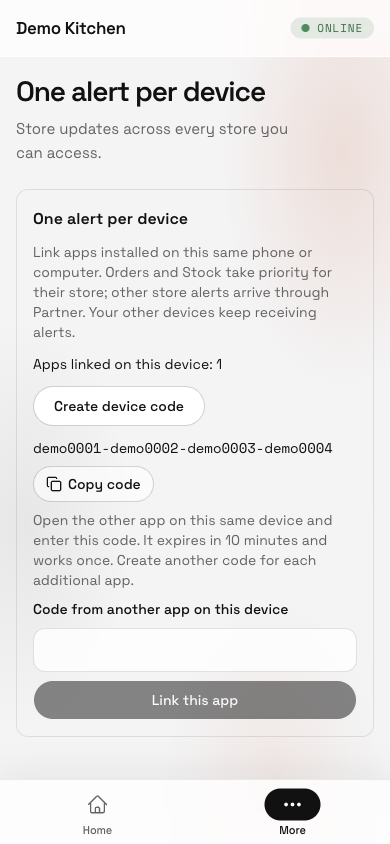
- In one enabled app, open One alert per device and choose Create device code.
- Choose Copy code. Open the other Krobr app on this same phone or computer, signed into the same account.
- Enable its push notifications, paste the code into Code from another app on this device, then choose Link this app.
- Check Apps linked on this device. Create a fresh code for each additional app: a code works once and expires after ten minutes.
- To separate an app again, choose Unlink this app in that app.
Within a linked group, the matching Orders or Stock app takes priority over Partner. Other store alerts use Partner. Workspace takes priority over a matching storefront for personal customer-order updates. Each other device continues receiving its own alerts. Link only apps on the same physical device: linking a laptop to your phone would make them share one receiver. Apps remain independent until linked; reinstalling or replacing a subscription may require linking again.
Linking applies to new alerts; notifications already queued before linking can still arrive.
New order alerts
Owner/staff alerts say Order received — Store name, with the order number and customer when available. Tapping opens that exact Partner order, or the focused Orders app that received it. The open order screen retains its prominent single sound burst for a new arrival after audio is allowed. Phone push tone and volume follow device settings; mute, Focus and battery-saving settings can affect delivery.
Check the result
Each inbox shows its own updates. Read counts change only for the selected inbox/store scope. After linking, the enabled receiving app handles each eligible push for that device while other devices remain independent. Check the underlying order or billing screen for the actual business state.
If something goes wrong
- Invalid or expired linking code: create a fresh code in the other app and confirm both apps use the same account.
- Alerts still repeat across apps: enable push in each app, then link those apps on that device. Your other devices should keep alerting independently.
- Store history is missing: check current store and section access, then open Orders or Inventory directly for the underlying records.
- Permission denied: allow notifications in browser/device settings, then reopen the app. Repeatedly choosing Enable cannot override a device-level block.
- Generic Krobr update — Open the app to view it: sign in again and check store access. If it persists while signed in, ask support to check private push configuration.
- Alerts stopped after sign-out, permission changes or reinstall: sign in, reopen the app, check its push control and link it again when necessary.
Support partner access
Support-partner changes stay in workspace Notifications and are also queued for email. Assignment changes immediately even when email is delayed. A partner's private store history and push alerts require current assignment and relevant section access.
Screenshots
These component previews use synthetic demonstration data. Names and available navigation entries differ from your account; follow your current screen and permissions.