What this guide helps you do
Configure complete bank instructions as an owner, understand the customer's manual-payment steps after placing an order, and verify the receipt as staff.
Before you start
Owners need configuration permission to edit bank details; staff need order-management permission to verify payment. Customers need their private order link and an actual bank transfer receipt.
Where to find it
Owners: Partner → Fulfilments → Pay by bank/Bank accounts. Customers: the private order status page after checkout. Staff: Partner → Orders → the bank-payment order.
Step by step
-
As owner, add an account with Bank name, Account title, and Account number. Enter IBAN / routing and Instructions only where needed.
-
Enable Pay by bank and Save changes. At least one complete bank account is required; a partially typed account is not sufficient.
-
As customer, choose Pay by bank at checkout and place the order using the required delivery/contact details.
-
Keep the resulting private status link. Open its bank-payment instructions, check the destination and payable amount, and make the transfer through your own banking app.
-
Upload the supported payment proof on that order's status page. Confirm upload/submission success; choosing a file alone is not verification.
-
As staff, open the order in Partner and inspect its receipt/payment evidence alongside the total and reference.
-
Check the actual transfer in your bank records. Mark payment received/confirmed only when you have verified the money, then continue the offered order workflow.
-
If the proof is wrong or unclear, use the supported correction/rejection action and its message rather than accepting blindly. The customer follows the resulting status-page instruction.
Understand the choices
-
Krobr records the order and evidence; it does not move money or automatically verify a bank transfer.
-
Bank account information is shown in the appropriate post-order payment flow; do not put private receipts or account-specific data in public content.
-
Uploading proof and receiving payment are different states. Only authorized staff can confirm payment.
-
A correction can require new customer input. Follow the current status and buttons rather than submitting a second unrelated order.
Check the result
The customer sees the saved bank instructions and payment state; staff sees the receipt and advances the order only after verification. The final order page reflects the accepted payment state.
If something goes wrong
-
Pay by bank is missing: the owner must enable it and save at least one complete account.
-
Proof upload rejected: follow the allowed types, size, and order state shown by the uploader.
-
The customer says paid but status is awaiting payment: staff must verify the transfer; the app cannot infer bank settlement.
-
Receipt expired/removed later: order-file retention applies; authorized users should download needed evidence before the removal date.
Screenshots
These screenshots use demonstration data. Your names, amounts and available controls may differ. Current values on your own screen take priority.
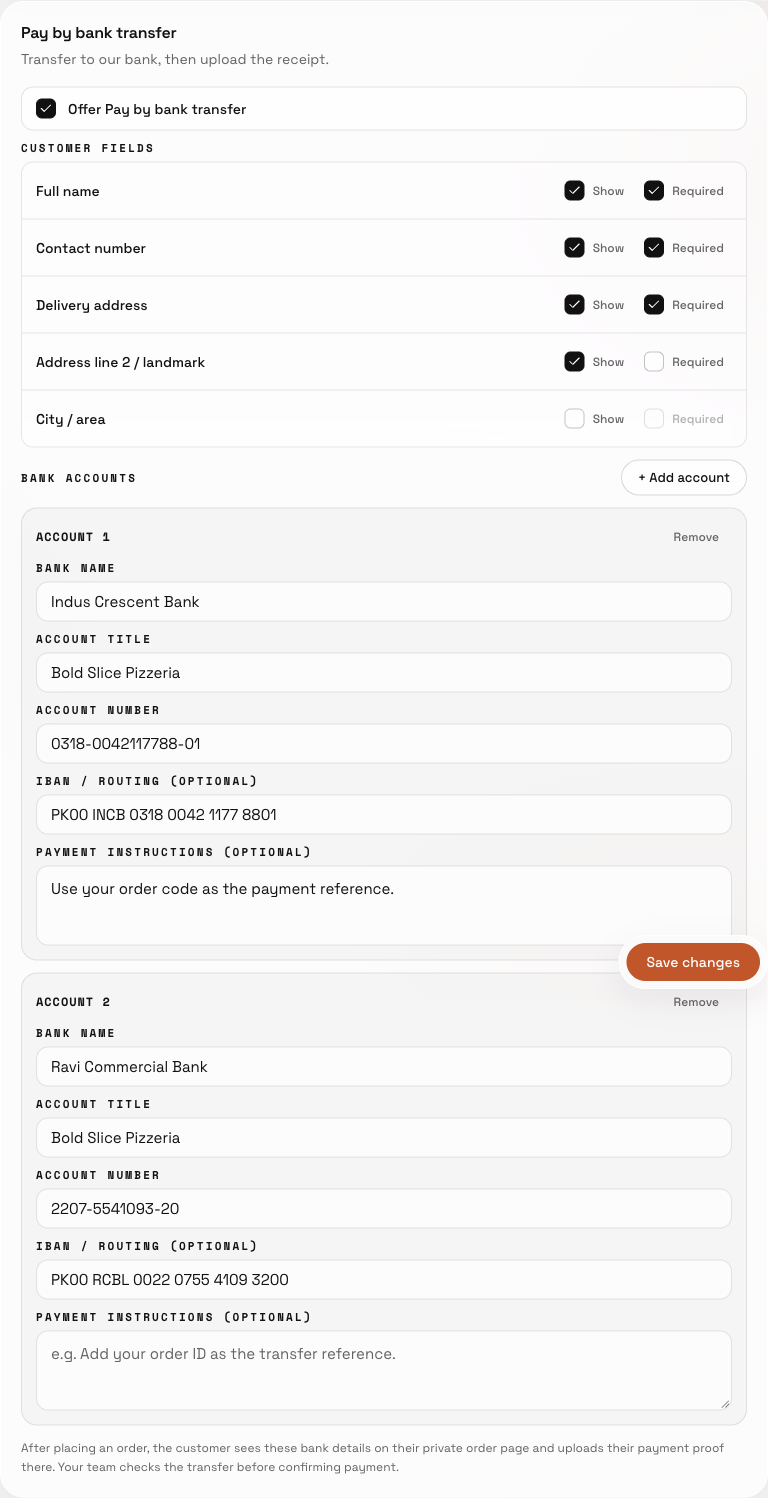
Save complete bank-account details; customers upload payment proof on their private order page after placing the order.