What this guide helps you do
Use Partner's camera scanner to open an order, understand the customer-camera fallback, and safely handle a denied camera or another store's code.
Before you start
Sign in to Partner with View submissions permission. Use a device with a camera and allow camera access when asked. Scanning only opens an order; it never changes its status.
Where to find it
Partner → Orders → Scan, beside + New order on a phone. The focused Orders app uses the same scanner. Customers find their QR near the top of their private order page.
Step by step
-
Ask the customer to open their private order page and tap the QR to enlarge it. Read the printed order number underneath as a fallback.
-
In Partner Orders, choose Scan and allow camera access. Keep the code centered and well lit.
-
Wait for the scanner to recognize a Krobr order code. On success, inspect the order dialog that opens.
-
Check store, order number, customer, and items before handing over goods or choosing a status action.
-
If the order is from another store you can access, use the offered Open it there link. If you have no access, the scanner gives a generic not-your-store/not-found result.
-
If camera permission is denied or the device has no camera, choose Type the order number instead and use Orders search.
-
Close the scanner when finished; its camera stops. Opening an order through Scan does not mark it picked up or completed.
-
If someone scans using the phone's normal camera, the link opens the customer's order page, which may be in a browser rather than the installed staff app.
Understand the choices
-
Store QR, order QR, and app-install QR serve different destinations. The order scanner expects an order-tracking link.
-
The QR contains the private link the customer already holds. Treat screenshots of that link as private customer information.
-
Staff actions still require Manage submissions permission even after a successful scan.
-
A generic failure does not reveal whether another store's inaccessible order exists.
Check the result
The intended order opens with its existing status unchanged. Staff can then deliberately choose an authorized next action after checking the details.
If something goes wrong
-
QR will not read: enlarge it, reduce glare, hold still, or type the visible order number.
-
That isn't a Krobr order code: use the order QR rather than the printed storefront menu code.
-
Camera permission denied: change the browser/app's camera setting if desired, or keep using order-number search.
-
Normal camera shows no staff buttons: open Partner and use its in-app scanner with the correct staff login.
Screenshots
These screenshots use demonstration data. Your names, amounts and available controls may differ. Current values on your own screen take priority.
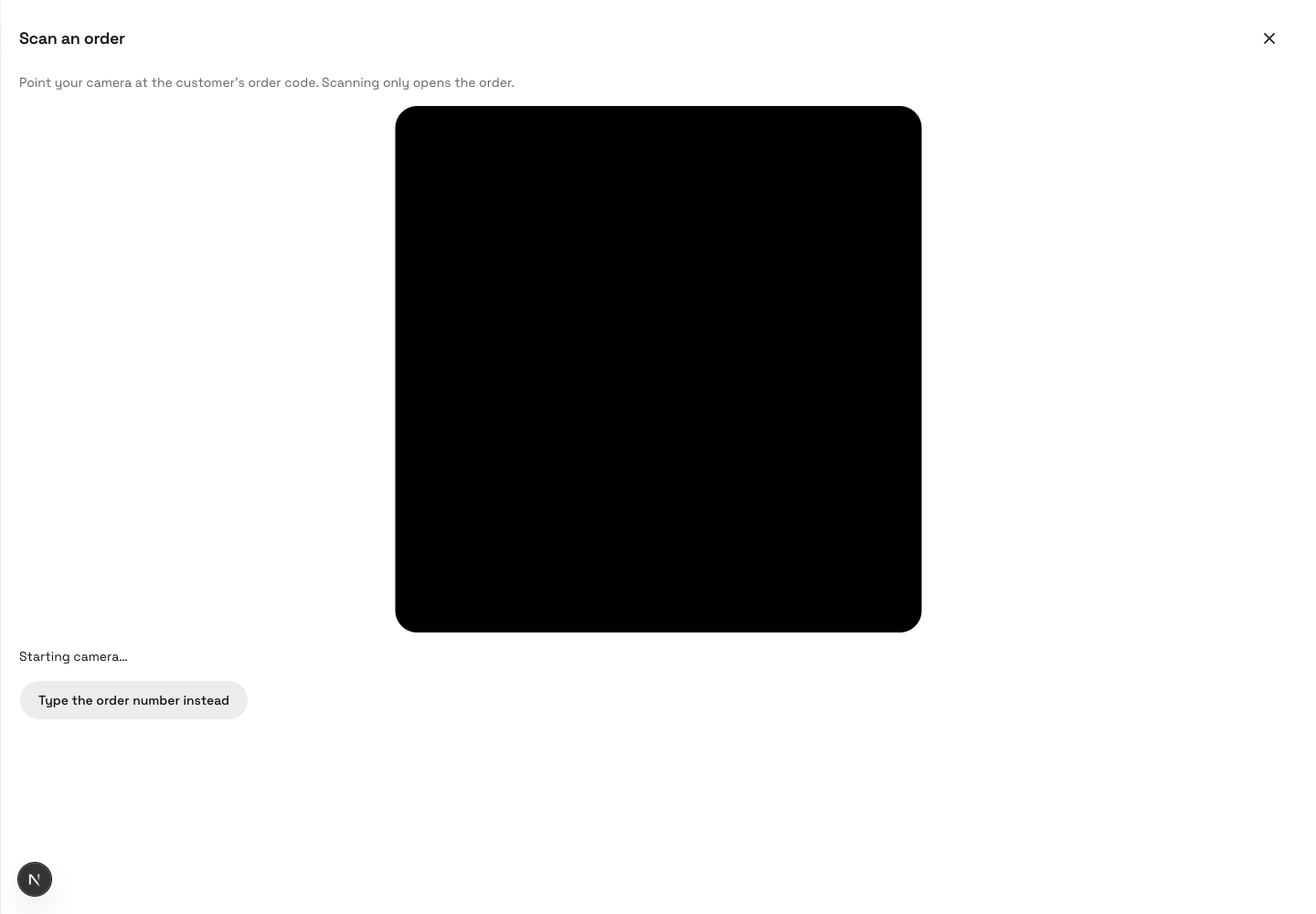
Scanner opening with Starting camera and the typed-order-number fallback. This image does not show a successful scan or granted camera permission.