What this guide helps you do
Share your storefront through a printed QR design, choose its appearance and format, and distinguish store codes from order codes and app-install codes.
Before you start
Use your own store or the access required by the QR builder. Confirm the public storefront is ready and check your package's QR download allowance in Billing & Usage.
Where to find it
Experiences → your store → QR codes. The overview's basic QR dialog is useful for a quick code; the QR builder offers printable designs. On a phone start from Experiences and the store overview.
Step by step
-
Open QR codes for the correct store and choose a design.
-
Review the editable design fields, such as a heading, store name, text, and color where that design offers them. Keep text short enough to fit. If the design offers a custom logo, file uploads and Paste URL require a fixed 1:1 crop and Use crop. Background photos start with Original and allow an optional crop.
-
Check the live preview. Maintain clear contrast and leave the QR code's surrounding blank area unobstructed.
-
Choose the available download format. Use an image for digital sharing or a PDF/print-oriented output when offered.
-
Wait for the download to finish. A package allowance can limit downloads even though the preview still opens.
-
Print at a readable size without stretching the square code or placing it over a busy image.
-
Scan the printed result with a normal phone camera and confirm it opens this store's public storefront.
-
Keep an order's QR separate: an order QR opens a private order-tracking link, while the store QR opens the storefront.
Understand the choices
-
The code uses the store's permanent address so printed material survives later canonical-domain changes.
-
A design's editable options affect appearance, not which store it belongs to. Check the selected store before printing.
-
Download counts and upgrade prompts follow the current package. Previewing and downloading are different actions.
-
A storefront must be available for a scan to show customers the live store. The QR itself does not publish an offline store.
Check the result
The downloaded design opens the intended storefront when scanned, and the printed code stays sharp with enough white space around it.
If something goes wrong
-
Camera cannot scan: increase size, improve contrast, remove glare, and keep the QR square.
-
Scan opens an unavailable page: check the store's published status and package restrictions.
-
Download refused: read the allowance or validation message; do not repeatedly press Download.
-
It opens one order: you printed an order code rather than the store's code.
Screenshots
These screenshots use demonstration data. Your names, amounts and available controls may differ. Current values on your own screen take priority.
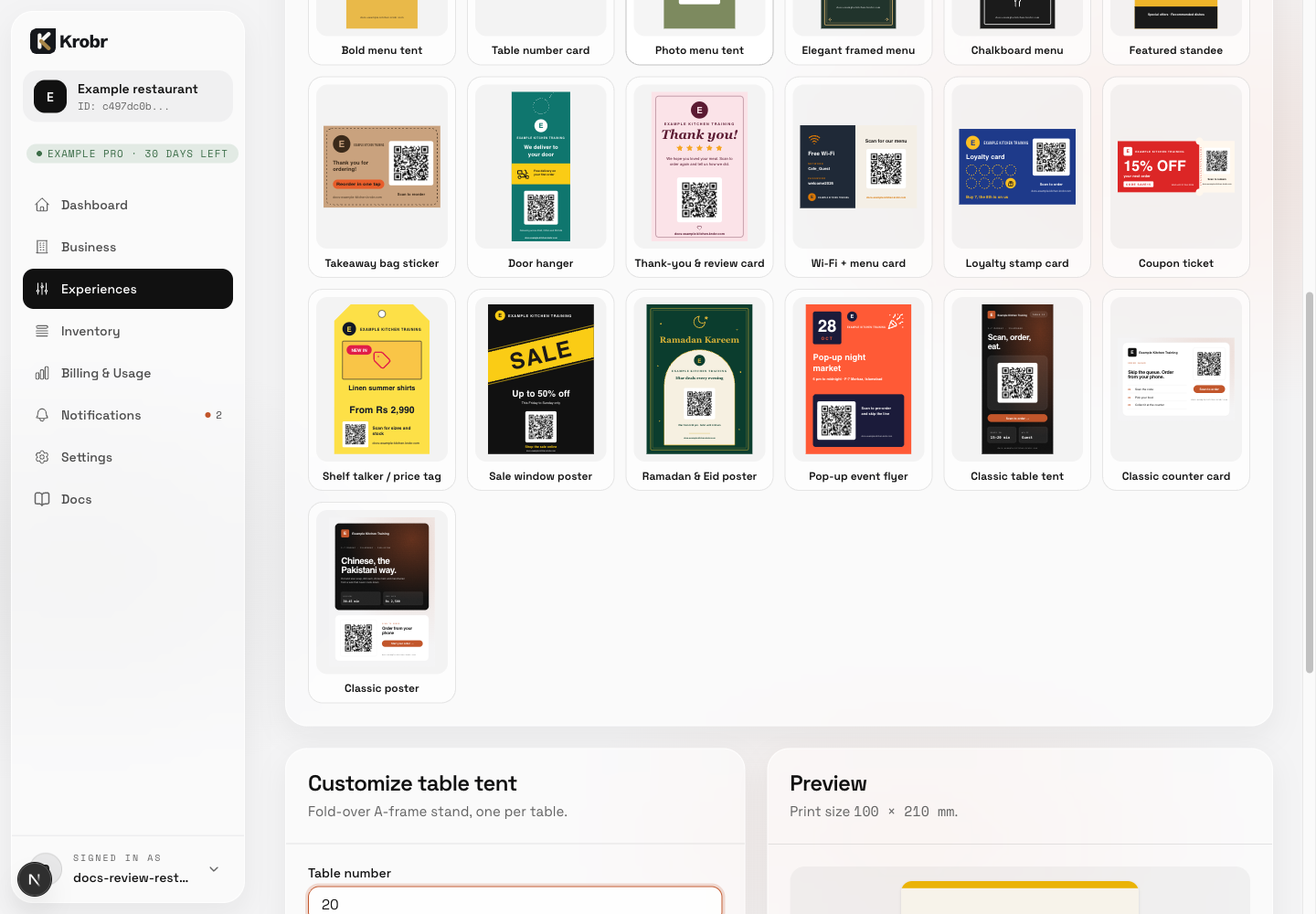
Create, download, and print a store QR code: find the controls in this example screen and follow the numbered instructions above.