What this guide helps you do
Read store performance for the intended date range, understand completed-order revenue and store-local dates, and distinguish sales reports from account usage meters.
Before you start
Use the store's report/order-view permission. Know the store timezone and currency. A newly opened store may legitimately have no completed sales yet.
Where to find it
Partner → Reports, or Home for its summary. On a phone use Reports or More. Workspace Billing & Usage has account allowances/views; it is a different report.
View linked order opens the private customer status page on the store’s public address in a new tab. The report list remains in its original tab.
Step by step
-
Open Reports for the correct store and choose the offered period/date range.
-
Read the visible start/end dates and currency before interpreting a total. Confirm the store timezone when comparing end-of-day figures.
-
Inspect order counts, completed sales/revenue, and the offered trends/top-products sections. Read each metric's label rather than treating every placed order as a completed sale.
-
Compare with Home only when it shows the same period. A rolling window and a different date range can legitimately differ.
-
Open Orders and inspect the matching completed/delivered records if investigating a discrepancy. Use their submitted price snapshots, not today's catalog prices.
-
Export the selected report to PDF/CSV where offered and confirm its dates/currency match the onscreen report.
-
Open Billing & Usage separately to check Orders this cycle, storage, exports, and page views. Its reset/date conventions are stated on that screen.
Understand the choices
-
Store sales/day summaries use the store's local calendar. Workspace page views use UTC day conventions, so midnight comparisons can differ.
-
Completion/delivery books the sale according to the order's stored amount. Cancellation is not the same as successful fulfillment.
-
A previous order day's recorded data is not retroactively rebuilt just because a store later changes timezone or catalog prices.
-
Usage allowance is an account billing-cycle meter, not a store profit metric.
Check the result
You can explain the report's scope, dates, currency, and included order states, and its export agrees with the selected onscreen window.
If something goes wrong
-
Zero revenue despite new orders: check whether they reached the report's successful completion/delivery state.
-
PDF differs from Home: align period/date range, store, and currency first.
-
Missing late-night sale: inspect the store-local date and report window rather than the device's calendar alone.
Screenshots
These screenshots use demonstration data. Your names, amounts and available controls may differ. Current values on your own screen take priority.
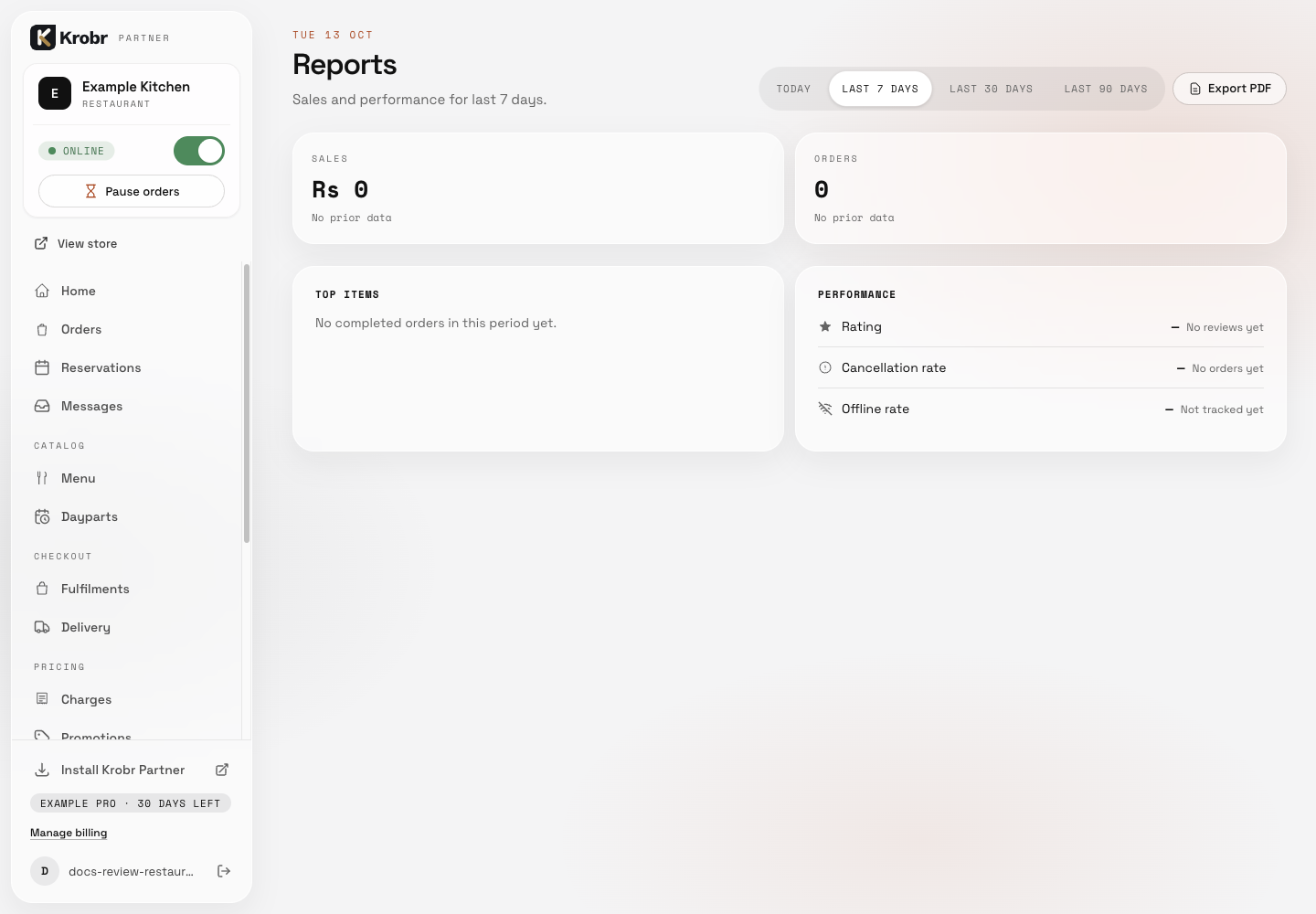
Read store reports, sales periods, and usage counters: find the controls in this example screen and follow the numbered instructions above. Retained English example from 13 October 2026. The Partner account area now also includes Language, which is not shown in this dated sidebar; follow the numbered steps for the current screen.