What this guide helps you do
Understand renewal dates and balances, switch auto-renew deliberately, respond to a past-due notice, and recover when a package or submission allowance affects new orders.
Before you start
Open the owner's Billing & Usage screen and read the actual cycle dates. Have access to the legitimate top-up/partner process. Existing orders remain important even when the account cannot take new ones.
Where to find it
Billing & Usage → Current package, Auto-renew, usage meters, and notices. The dashboard and Partner can show warnings linking back to this hub.
Step by step
-
Read the package status and next renewal date. Note any scheduled package/cycle change and its effective date.
-
Check the renewal amount and balance in your billing currency. Arrange a top-up before the due date if needed.
-
To stop future renewal, turn Auto-renew off where offered and confirm the resulting state. The existing paid period continues until its end.
-
To renew normally again, turn Auto-renew on while your subscription supports it and verify the switch persisted.
-
If the package is past due, read the grace deadline/shortfall and use Request a top-up. A verified recorded payment can fund the renewal immediately.
-
After a renewal, confirm the actual new period and invoice. A late grace-period payment renews from the existing cycle boundary rather than giving an extra free waiting period.
-
If the package ended or grace expired, read the Free-package/reconciliation notice and inspect which stores remain active.
-
Check Orders this cycle and its reset date. At the allowance limit, new submissions can pause while staff still manages already placed orders.
-
Inspect storage, export, QR-download, and seat limits in their own controls. Request an appropriate package if your operations exceed the current allowance.
-
Use Re-publish only after package eligibility is restored and ordinary publish requirements are satisfied. A suspension still needs its own authorized resolution.
Understand the choices
-
Auto-renew off means end at the paid period boundary; it is not an immediate refund or deletion.
-
Grace keeps the paid entitlements temporarily while payment is overdue. Follow the displayed deadline instead of guessing from a calendar month.
-
Orders this cycle uses the displayed billing window/reset, not the date you last opened the page.
-
Downgrades can take excess stores offline while retaining records and existing order links. Existing team seats are not automatically removed as a substitute for review.
-
Workspace page-view days and store sales days can use different date conventions; read each report's labels.
Check the result
You know whether the package is active, scheduled, in grace, or ended, and the meters show the correct remaining allowance/reset. A successful renewal has an invoice and updated period.
If something goes wrong
-
Renewal still failing after payment: inspect whether the payment was recorded in the right currency and enough balance remains.
-
Auto-renew switch missing: it is only offered for supported live subscription states.
-
New orders paused: check the submission cap and reset/upgrade path rather than repeatedly refreshing checkout.
-
Store offline after downgrade: inspect current store entitlement, choose the eligible stores, and follow the publish path.
Screenshots
These screenshots use demonstration data. Your names, amounts and available controls may differ. Current values on your own screen take priority.
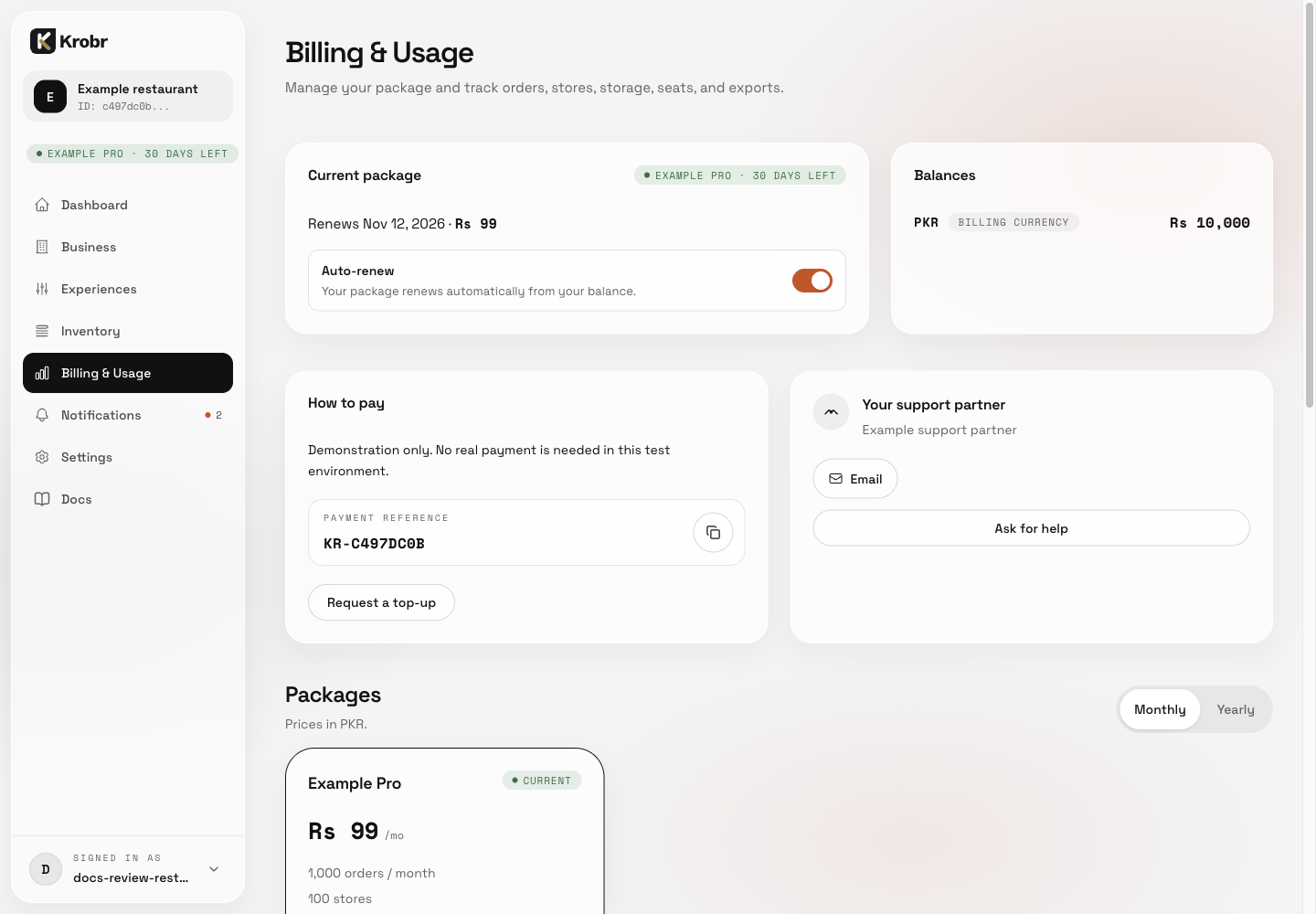
Manage auto-renew, grace periods, usage limits, and ended packages: find the controls in this example screen and follow the numbered instructions above.