What this guide helps you do
Follow the real payment instructions, use your account reference, confirm a recorded top-up, and understand the separate balances and billing-history entries.
Before you start
Use the owner account and the genuine Billing & Usage payment instructions. Payments happen outside Krobr; an active partner or authorized staff records the received amount.
Where to find it
Billing & Usage → Balances, How to pay, and Billing history. On a phone use Billing. Request a top-up opens the support-request composer.
Step by step
-
Open Billing & Usage and note the current billing currency and separate currency balances.
-
Read How to pay. Use the displayed bank/wallet instructions or your assigned support partner's legitimate instructions.
-
Copy the account payment reference and include it or your login email in the transfer description as requested.
-
Make the external payment using your own banking/payment app. Use the offered payment WhatsApp/contact link to provide the receipt/reference when needed.
-
Use Request a top-up if you need the partner to arrange or confirm a payment. State the optional amount and whether you already sent the money accurately.
-
Wait for the partner or staff to record the verified payment. An owner request or screenshot upload alone does not credit the balance.
-
Refresh Balances and read the PAYMENT entry/notification. If a renewal was overdue, the credit may immediately fund the renewal charge.
-
In Billing history, open a charge/invoice entry to inspect the period, line items, currency, total, and paid state. Read adjustments separately from new payments.
-
If an amount was recorded incorrectly, use the support process for an authorized reversal. Do not request a duplicate credit for the same payment.
Understand the choices
-
Balances are separate by currency. Changing billing currency does not convert or combine your existing balances.
-
Payment adds balance; a package or renewal charge subtracts it. The account can receive both entries close together.
-
Opening a domain setup request creates a quote without moving money. Its helper's claim creates one wallet charge; a failed setup creates a full refund adjustment referencing that charge. There are no recurring domain fees on eligible packages.
-
An ADJUSTMENT can reverse an incorrect payment and may make a balance negative. It is not automatically an external cash refund.
-
If platform instructions are not configured, the page asks your support partner to share how to pay rather than showing invented bank details.
Check the result
The verified payment is recorded once in the intended currency, with any corresponding package charge visible in the same history. You can inspect the invoice rather than guessing from the ending balance.
If something goes wrong
-
Balance did not rise by the full payment: inspect whether a renewal/package charge also happened.
-
Payment still absent: provide the exact reference/receipt through the legitimate contact route and wait for recording.
-
Money sits in another currency: currencies are not automatically exchanged; read the billing-currency guide.
-
No invoice for a request: invoices accompany actual charges, not an unfulfilled owner request.
Screenshots
These screenshots use demonstration data. Your names, amounts and available controls may differ. Current values on your own screen take priority.
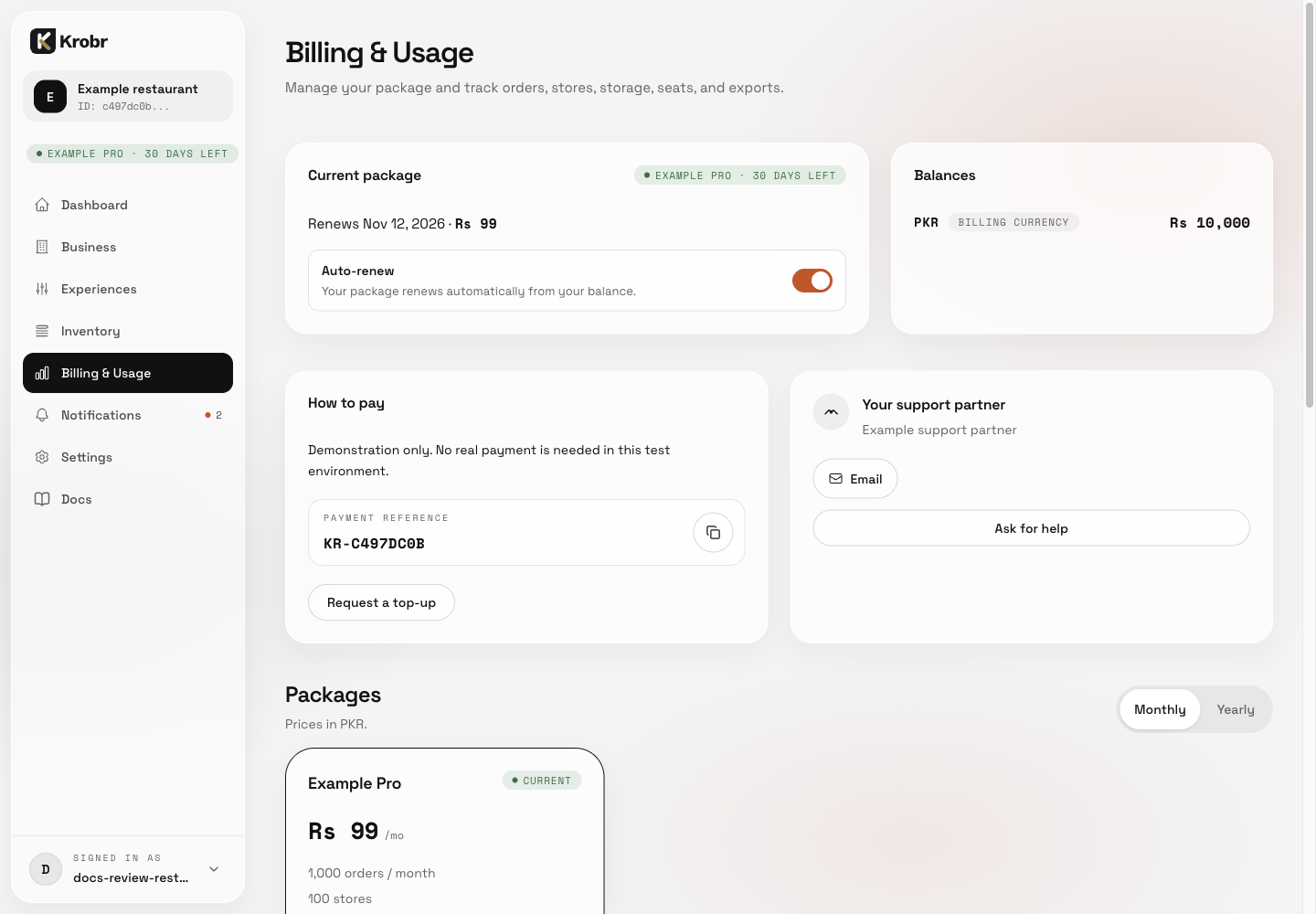
Top up your balance and read billing history and invoices: find the controls in this example screen and follow the numbered instructions above.