What this guide helps you do
Download permitted store data in the offered CSV/PDF format, choose the correct filters/columns where entitled, and understand export allowances and file-download differences.
Before you start
You need the underlying data permission: catalog access for product data or order/report access for order data. Check the package's export allowance and customization entitlement.
Where to find it
Use the Export control on the relevant Partner catalog, Orders, or Reports screen. On a phone open that screen through its tab/More, then its export control.
Step by step
-
Open the correct store and the dataset you need. Apply the screen's relevant date/status/search filters before opening Export if the control uses them.
-
Read the dataset heading. Orders and catalog exports download CSV; the Reports statement downloads PDF. The screen determines the format rather than asking you to choose a file type.
-
Review the export scope. If customization is enabled for your package, choose columns, date presets, and supported filters; otherwise use the standard offered export.
-
Check Date range, the selected Columns where offered, and your current screen filters so you export the intended scope.
-
Choose Download once and wait for the browser's download. Check that the file contains the intended store, period, columns, and currency.
-
Open CSV in a spreadsheet app or PDF in a viewer. Keep customer names, contact details, and private order information in an appropriately protected location.
-
Inspect the remaining export allowance in Billing & Usage if the control reports a limit. A completed metered export is different from browsing a report.
-
Use the order's attachment download/Download all files control when you need original customer files; CSV/PDF rows are not those original attachments.
Understand the choices
-
Customization and monthly/cycle export counts follow the current package; permitted data still follows your role.
-
Order exports describe submitted snapshots. Catalog exports describe the current catalog.
-
Report date ranges follow the report's store-local date labels; do not assume another app's view counters use the same day boundary.
-
An export is a downloaded copy. Editing it does not upload changes back into Partner or import a catalog.
Check the result
A readable file contains the expected authorized rows and scope. Its data/currency match the source screen or selected report window.
If something goes wrong
-
Export gated: read whether the block is permission, allowance, or customization; these are different conditions.
-
File did not download: check browser download settings and the request's error before retrying.
-
Rows missing: review filters, date window, and whether you exported orders versus the current catalog.
-
Need attachments: open the actual order files instead of expecting them embedded in every CSV.
Support partner access
A support partner needs Exports View and View or Manage for the data’s section. Turning Orders, Inventory or Reports off blocks its export even when Exports remains on. Export package limits still apply to the customer’s account.
Screenshots
These screenshots use demonstration data. Your names, amounts and available controls may differ. Current values on your own screen take priority.
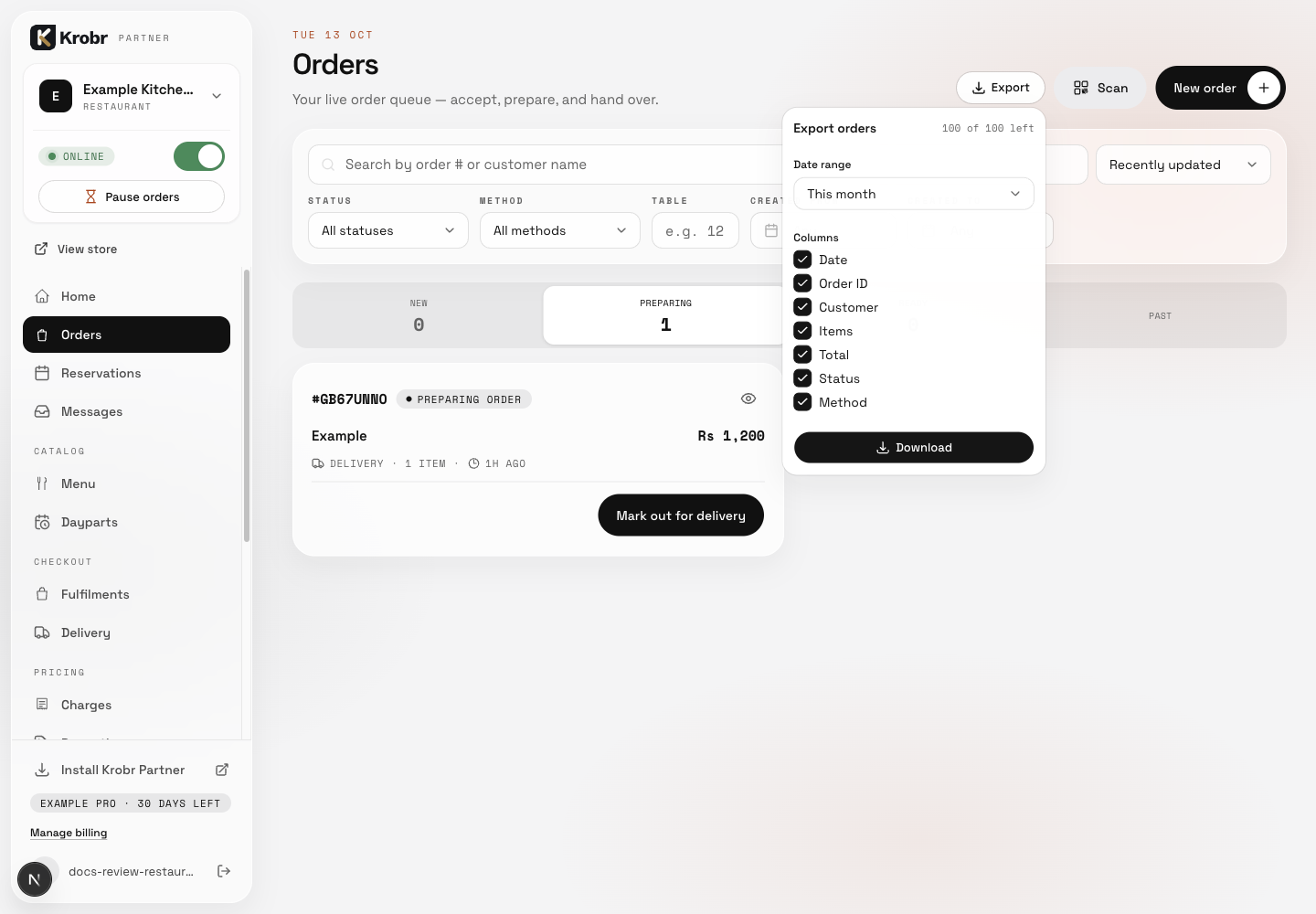
Read the export dataset, remaining allowance, Date range and Columns before Download. Retained English example from 13 October 2026. The Partner account area now also includes Language, which is not shown in this dated sidebar; follow the numbered steps for the current screen.