What this guide helps you do
Understand which order changes are still allowed, confirm a cancellation deliberately, and correct an order through its existing private status link rather than creating duplicates.
Before you start
Customers need the private status link. Staff need order-management access. Available actions depend on the fulfillment method and current state; a completed/cancelled terminal order cannot be treated as a fresh editable cart.
Where to find it
Customers use their order status page's Cancel/request-change/correction controls when offered. Staff use Partner → Orders → order detail and its allowed rejection/status actions.
Step by step
-
Open the existing order and read its current status before choosing a change.
-
If Cancel order is offered, tap it and read the separate confirmation. Choose Keep order to exit without cancellation or confirm only if you intend to cancel.
-
As a customer, after confirming, wait for success and inspect the new state. The appearance of a button alone does not mean the cancellation already happened.
-
If direct cancellation is no longer allowed, use the offered request-change/cancellation path or contact the store through the visible contact control.
-
As staff, inspect the request and use only the next actions allowed for this method/state. Enter the required explanation for rejection/correction. Partner Orders updates immediately and saves changes on your device, including offline. Pending changes reach the server, customer page and other devices after sync; review a held change if the server state has changed. Follow the Orders guide for sync controls.
-
When the customer page says Needs update or requests a correction, read the store's note, open the allowed edit/resubmit flow, and fix the identified information.
-
Review items, required fields, and the new total before resubmitting. A real resubmission can use current catalog/pricing; merely requesting a correction does not rewrite the old price snapshot.
-
Submit the correction once and wait. Reopen the same private status link to verify the resulting state.
-
Handle any actual money return through the store's real payment process. A cancelled status does not automatically transfer a refund through a banking service.
Understand the choices
-
Direct customer cancellation is state/method-dependent. Missing controls can be expected after preparation or a terminal state.
-
A change request is a request, not an immediate edit to the submitted snapshot.
-
The confirmation protects against accidental taps; Keep order leaves the existing order intact.
-
Past submitted prices stay fixed on staff status moves. Customer resubmission is the distinct event that can recalculate the order.
Check the result
The existing status link shows a confirmed cancellation or the accepted corrected order. No extra order was created merely to check or request a change.
If something goes wrong
-
Cancel control missing: inspect current method/status; do not assume an access error or try submitting the order again.
-
A correction's total changed: compare the current catalog/options and displayed total before accepting resubmission.
-
Customer connection dropped during confirmation: reread the existing status link before retrying. Staff should check Pending order changes in Partner instead of submitting the same change again.
-
Already completed/cancelled: terminal states restrict further changes; use the store's contact/support process for a genuine operational dispute.
Screenshots
These screenshots use demonstration data. Your names, amounts and available controls may differ. Current values on your own screen take priority.
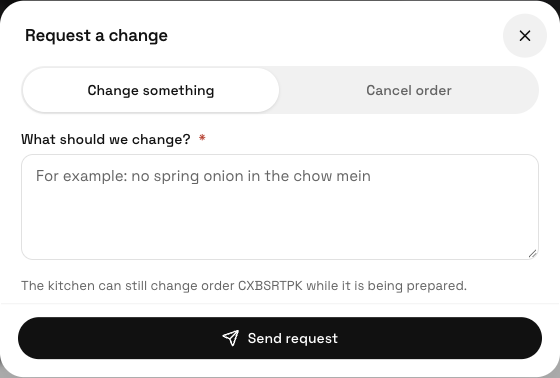
Request a change offers separate change and cancellation choices; read which action you are sending.