What this guide helps you do
Give customers size or variant choices and extras, set required/minimum/maximum selections, and safely manage groups reused by more than one item.
Before you start
Open a restaurant product with Manage inventory access. Decide which choice determines the full item price and which choices are additional extras. Do not model retail SKUs with restaurant add-on groups.
Where to find it
Partner → Menu → item editor → Variants and Add-ons. A shared-group selector can attach an existing group. On a phone scroll the editor page to these sections.
Step by step
-
Open the item and inspect any existing Variant group. Use Add variants for a new group. A restaurant item can use a required single-choice variant such as Small or Large.
-
Name the variant group and add the choices. Enter each variant's full price; the variant supplies the base price instead of being an extra surcharge.
-
Under Add-ons, choose Add group for extras such as cheese or sauce. Enter each extra's nonnegative price; use zero for a genuinely free extra.
-
Choose single-select or multiple-select behavior where offered. Set Required and minimum/maximum choices to match what a customer must select.
-
Ensure there are enough available options to satisfy the required minimum. Making every mandatory variant unavailable makes the item unorderable.
-
To reuse a group, choose it from the existing-group selector. Read the Shared with… notice; shared fields initially remain read-only.
-
Choose Edit for all items only if the new name, price, or choices should apply everywhere the group is attached. Otherwise use a separate group or detach the existing one.
-
Save the product and open its customer item dialog. Test the required-choice messages and a quantity of two with different options on each unit.
-
Confirm the cart breakdown matches the selected variants/extras. Updating a shared group changes new orders, not past order snapshots.
Understand the choices
-
Variant price is the full per-unit base price. Add-on price is the extra amount added to that unit.
-
A required single-choice group needs one choice. Multiple-choice groups use their displayed minimum/maximum and available options.
-
The storefront can show a starting/from price when required choices have different prices. It should not be interpreted as the final price for every selection.
-
Shared groups are real shared records: editing one changes other items that use it. Detaching a group from one item is different from deleting the group.
Check the result
Customers can select valid choices, cannot submit missing mandatory options, and see each unit's own variants and extras priced correctly.
If something goes wrong
-
The base price doubles: check whether you entered a full variant price as an add-on to another full base price.
-
No choices can satisfy the minimum: lower the allowed minimum or restore enough available options.
-
A group unexpectedly changed on another item: it was shared; use the shared warning and separate groups when behavior must differ.
Screenshots
These screenshots use demonstration data. Your names, amounts and available controls may differ. Current values on your own screen take priority.
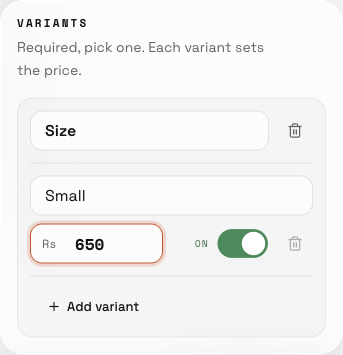
Variants select a base price; extras and shared option groups add choices and their own rules.