What this guide helps you do
Find the current pricing controls in Partner and check how item choices, charges, delivery and promotions produce the final total.
Before you start
Use Manage inventory access for catalog and pricing settings. Know your intended amounts. The current Restaurant and Product Catalog visual editor has a read-only Pricing panel.
Where to find it
Partner → Menu/Products for item prices; Charges, Promotions and Delivery for additional pricing. Phones use the catalog tab or More. Visual Editor → Pricing → Manage in Krobr Partner opens the management app.
Step by step
-
Open the correct store and confirm its currency before entering any amounts.
-
Open an item in Menu/Products. Set its Base price or each SKU's full selling price. Restaurant variant prices replace the base price; extras add to it.
-
Use Charges for applicable taxes/service charges and choose the displayed percentage or fixed amount and calculation basis.
-
Use Delivery for coverage and the selected flat or weight-based fee, including the free-delivery threshold.
-
Use Promotions for a qualifying discount or voucher. The best applicable single promotion wins; do not expect every offer to stack.
-
Save each changed operating form and inspect a customer cart with representative quantities and choices.
-
Review the price breakdown and final server-confirmed order total. A running preview can change when stock, delivery coverage or eligibility changes.
-
For an old order, read its stored item/price snapshot. Updating today's catalog does not rewrite it; a genuine correction/resubmission can use current prices.
Understand the choices
-
The visual editor's Managed badge means the setting belongs in Partner. Its Pricing panel does not offer editable service/tax amounts or custom formulas for current stores.
-
Compare-at/Was price is display information; it is separate from a promotion that actually changes the selling total.
-
Preview totals help with checking, while the server confirms the placed order's amount. Keep money in the store currency.
Check the result
The saved pricing produces the intended checkout breakdown and the placed order retains its confirmed amount.
If something goes wrong
-
Pricing read-only in the editor: use Manage in Krobr Partner, then the appropriate pricing screen.
-
Unexpected total: check full variant price versus extra price, quantity, fee basis and delivery method.
-
Offers did not combine: review the best-single promotion rule and qualification conditions.
-
Weight fee rejected: give required shipping weights to the ordered SKUs and review coverage.
Screenshots
These screenshots use demonstration data. Your names, amounts and available controls may differ. Current values on your own screen take priority.
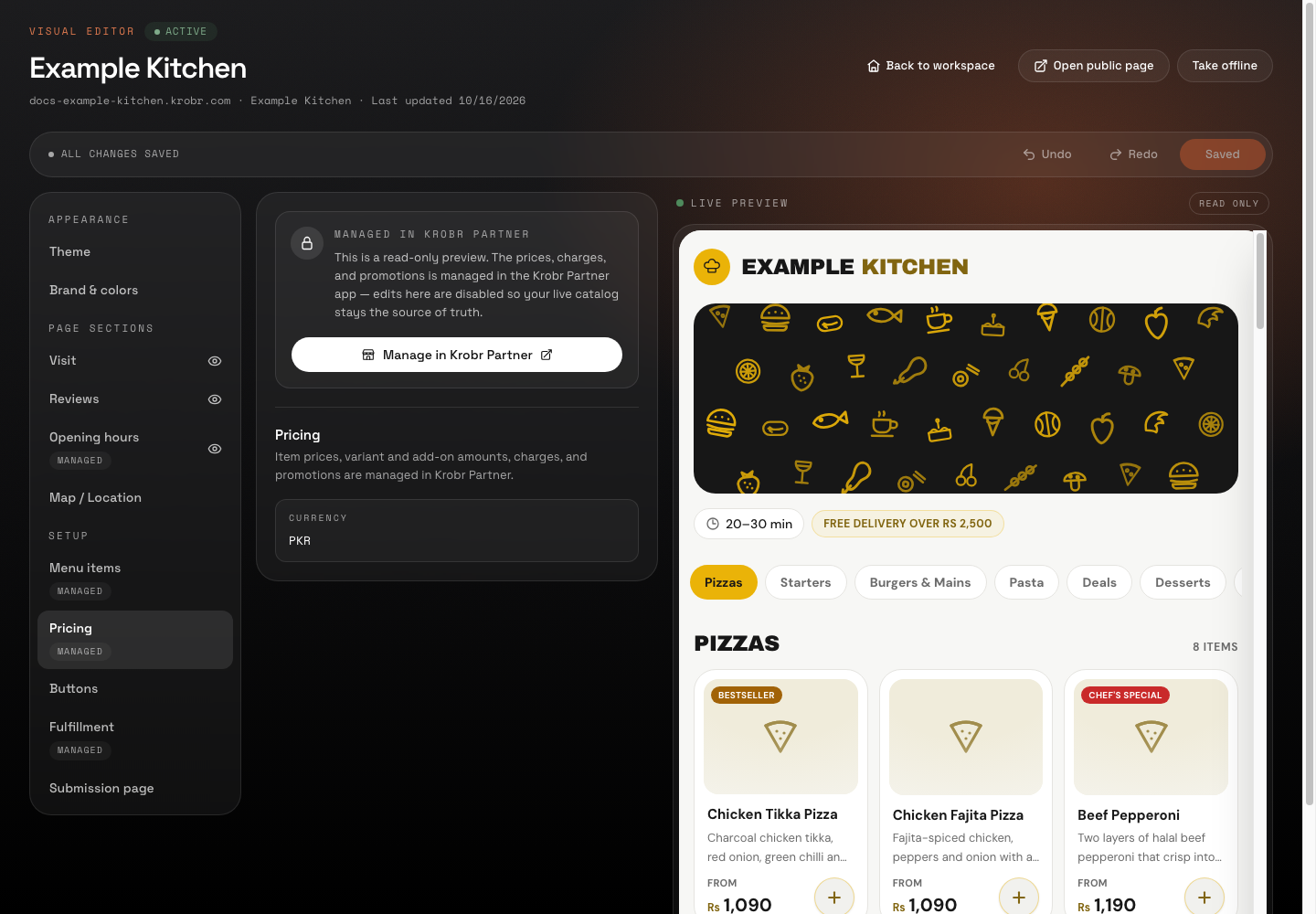
Managed pricing is a read-only view for merchant stores; the management link opens Partner.