What this guide helps you do
Tell Krobr about a store problem through the storefront's report form.
Before you start
Open the intended store’s storefront or its customer order page; the report control can appear on either. Prepare a factual description and optional contact information.
Where to find it
Find Report a problem or Report a problem with this store in the storefront footer or theme's account/menu area. The exact placement depends on its theme.
Step by step
-
Open the report control and check that you are on the intended store.
-
Describe the problem with relevant dates and order references where useful. Avoid posting passwords or bank access details.
-
Where a contact field is offered, enter optional contact information if you want Krobr to follow up.
-
Review your description and choose Send report once.
-
Wait for the successful confirmation before closing. For an order cancellation, use that order's available cancellation workflow separately.
Understand the choices
-
The description is required. Optional contact helps with follow-up; it does not turn the report into live chat.
-
Reporting sends a private platform review record. It does not automatically refund, cancel an order or suspend a store.
-
Customer reviews, contact messages and store reports serve different purposes; choose the control matching your need.
Check the result
The form confirms your report was sent for the correct store. Keep any relevant order link for separate order actions.
If something goes wrong
-
No report control: open the real public storefront; preview and order views may not expose it.
-
Describe the problem error: enter a meaningful description and retry.
-
Send error: restore connectivity and check for a success message before resubmitting.
Screenshots
These screenshots use demonstration data. Your names, amounts and available controls may differ. Current values on your own screen take priority.
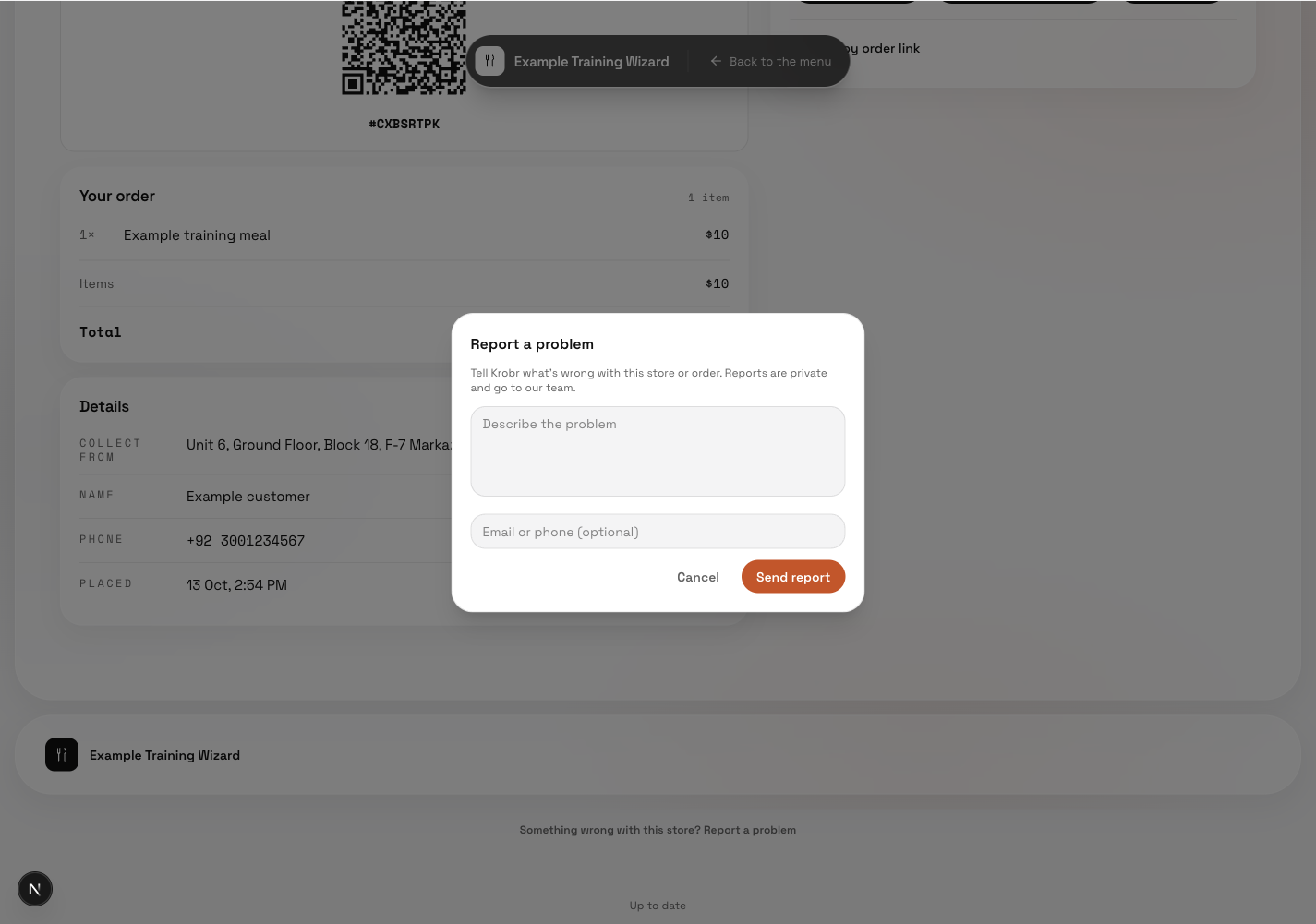
Send report sends a private problem report; it does not cancel or refund an order.