What this guide helps you do
Use the Visual Editor's section list, controls, and live preview, then save the design without losing edits or confusing Save with Publish.
Before you start
You need Edit design permission on the store. Know which store you are editing. Product names, catalog prices, variants, and stock for managed stores belong in Partner.
Where to find it
Experiences → store → Visual Editor. On desktop, choose a section from the left rail and edit its details beside the preview. On a phone, use the editor's section selector and preview controls.
Step by step
-
Open the correct store's Visual Editor and choose the section you want to change.
-
Read the section's labels and helper text. Change one field, then inspect the preview before continuing.
-
Use the section visibility control when offered. Core navigation, catalog, and footer may not have a hide control.
-
For products or stock, follow Manage in Krobr Partner from the read-only catalog panel. Return to the editor for appearance changes.
-
Inspect phone and desktop previews. Preview controls do not create customer orders or count as publishing.
-
Choose Save changes and wait for success. Saved design changes become live immediately for a published store.
-
If you keep editing while Save is running, the later edits remain unsaved. Choose Save changes again when the indicator still shows changes.
-
If a field fails validation, open the indicated section and correct the field. The editor must receive a valid complete design.
-
Before leaving through Go back, Back to workspace, browser back, refresh, or closing the tab, save first or deliberately discard the warned unsaved changes. Go back appears only when this browser tab has an earlier page on the same site to return to; an editor opened in a new tab shows only Back to workspace, which is always the way out.
Understand the choices
-
The preview is a working view of the design, not an autosave. The Save changes button is required.
-
Publish/Re-publish/Take offline changes store status only. The unsaved-change confirmation tells you the draft will not be saved by that action.
-
Theme selection controls which sections and inputs exist. Look up the theme guide if a field is absent.
-
Catalog changes made in Partner update the storefront's catalog; the design editor does not become a second stock or product editor.
Check the result
After Saved appears, open the live address and check the changed field. Returning to the editor shows the saved baseline. A remaining unsaved indicator means additional work still needs saving.
If something goes wrong
-
Save is rejected: fix the specific field or invalid formula/bank settings, then retry. Do not keep clicking without reading the message.
-
The editor reverted a field: some incomplete values cannot form a valid design; enter a complete valid value and inspect the error.
-
Changes vanished after leaving: there is no design autosave. Use the leave warning to return and save next time.
-
A slow connection: keep the editor open, restore connectivity, and verify success before leaving.
Support partner access
Theme & publishing must be Manage to save or publish as a support partner; View opens a read-only editor. Disabled catalog, stock or checkout sections cannot be changed through a theme save.
Screenshots
These screenshots use demonstration data. Your names, amounts and available controls may differ. Current values on your own screen take priority.
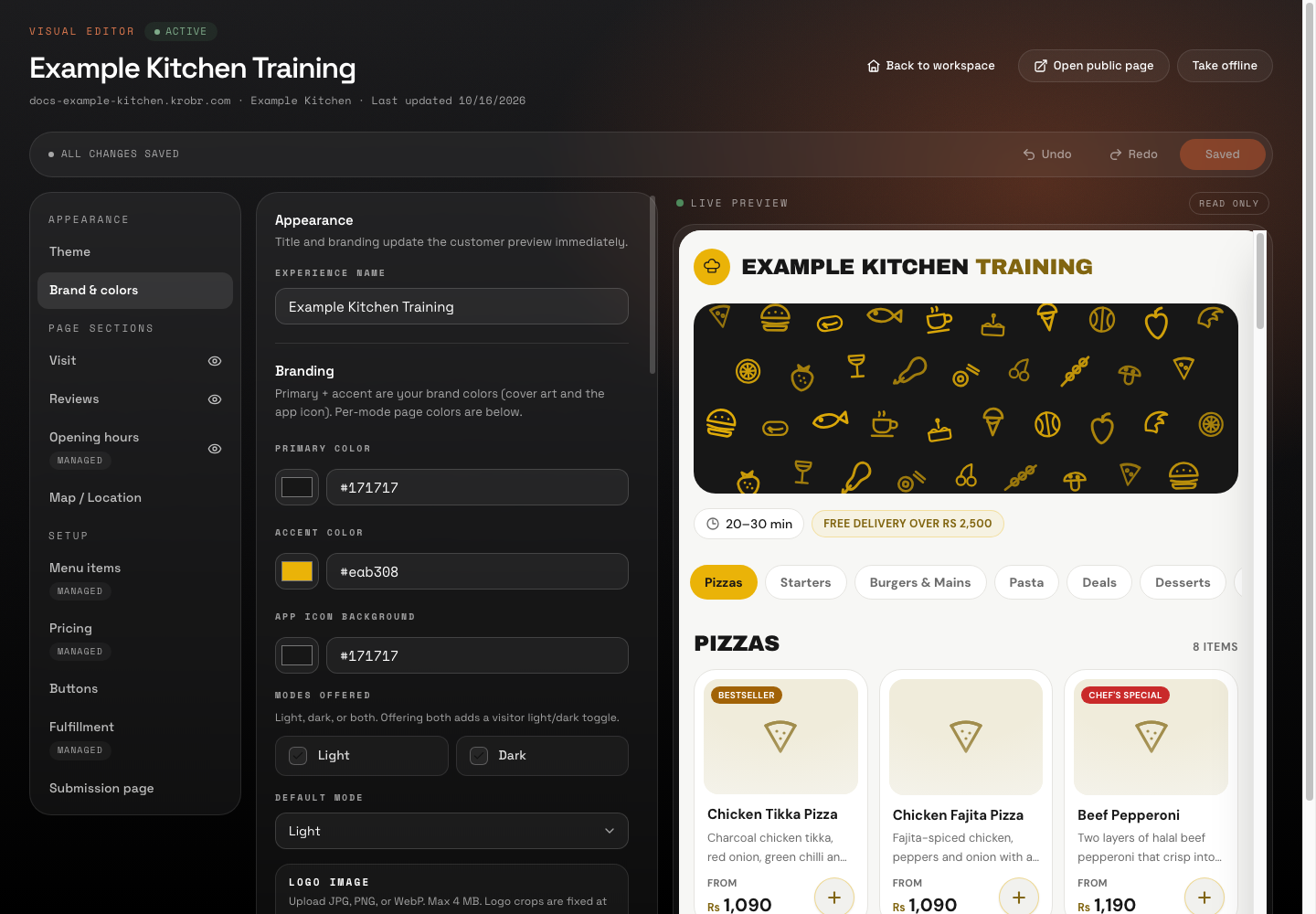
Saved and All changes saved confirm the editor has finished saving; the changed name was checked after reload.