What this guide helps you do
Compare restaurant or shop themes, preview a design, and understand why a section or customer feature can differ between themes.
Before you start
Choose the correct store category. Restaurant designs belong to restaurants and product-catalog designs to shops. Editing an existing store requires Edit design access.
Where to find it
During creation use the Design step. For an existing store open Experiences → your store → Visual Editor → Theme. On phones open the editor's section navigation and choose Theme.
Preview remains inside its dialog. Open live demo and Open full demo open the demo’s own address in a new tab; close that tab to return to your original page.
Step by step
-
Browse the themes offered for your category. Read the description and inspect the thumbnail.
-
During creation, choose View to open the full demonstration. Scroll through the home, catalog, checkout, and order presentation where available.
-
Read the selected theme's guide in Docs for its navigation style and supported sections. A phone-oriented feed and a printed-menu layout organize content differently.
-
Select the theme you want. In the creation wizard an explicit template choice can prefill its starting catalog; changing an existing store's theme is a presentation change.
-
Inspect Brand & colors and all available page sections after choosing. A theme can initialize its preferred colors; confirm your own brand values.
-
Preview on both phone and desktop widths. Check text wrapping, images, checkout controls, and navigation.
-
Choose Save changes in the Visual Editor when changing an existing store. Publishing the store does not save unsaved design changes.
-
Open the live storefront and confirm the design and visible sections match the saved preview.
Understand the choices
-
Core catalog/navigation sections may always remain visible. Only sections with a visibility control can be switched off.
-
A theme shows its supported fields and sections. A control absent from that theme's editor is not necessarily a permission error.
-
A theme change does not grant a paid entitlement, create a new store, or rewrite past orders.
-
Each new store is independent of its base template. Later template edits do not propagate into it.
Check the result
The saved storefront uses the selected theme, and the editor lists the sections that theme supports. Customer ordering behavior follows the store's configured methods and catalog.
If something goes wrong
-
A section disappeared: compare the old and new themes' feature lists and choose a supported section.
-
The preview looks different from live: choose Save changes and wait for Saved for its success before checking live.
-
A restaurant design is not offered for a shop: category-specific themes are intentional; choose a design from the shop's list.
Screenshots
These screenshots use demonstration data. Your names, amounts and available controls may differ. Current values on your own screen take priority.
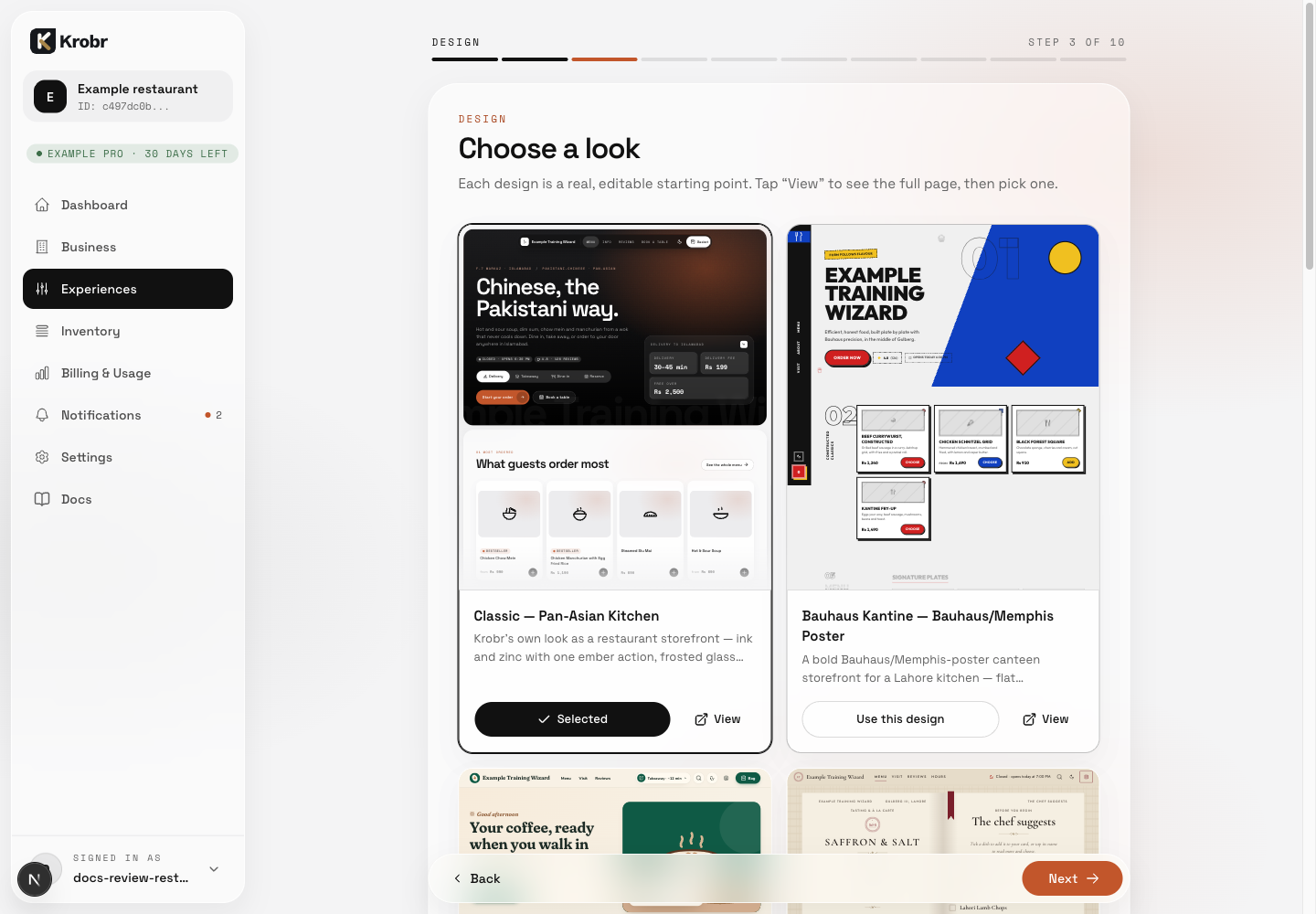
View opens the demonstration; Use this design explicitly selects its starting template.