What this guide helps you do
Give the storefront its name and colors, upload a logo and cover photographs, and choose a crop that looks good on phones and computers.
Before you start
Use Edit design access. Prepare clear images you are allowed to use. Follow the file types and size limits shown by the image picker; a screenshot of a very large file is not always a smaller upload.
Where to find it
Visual Editor → Brand & colors. Image controls also appear in Hero, Gallery/Lookbook, and other supported sections. On a phone open the section list first.
Step by step
-
Open Brand & colors and edit Store name/Experience name as labeled. This is the name customers see on that storefront.
-
Choose Primary color and Accent color. Check text and button readability in the preview instead of choosing colors only for their appearance.
-
Under Modes offered, choose Light, Dark or both. When both are offered, choose Default mode. Offering both gives visitors a light/dark toggle.
-
For Logo image, upload a supported file or use Paste URL. Both open a fixed 1:1 crop so the saved logo fits the square logo frame. If no logo is uploaded, the theme can use Logo icon or the name initial.
-
Position or zoom the logo inside the square and choose Use crop. Source shows the original dimensions; Crop shows the dimensions that will be saved. Cancel leaves the previous choice.
-
Add cover photos with Add cover photo. Review their order and the hero preview; remove images you do not want displayed.
-
If multiple covers are supported, set Cover rotation interval within the shown range. The hero rotates only when enough covers are present.
-
Check phone and desktop previews, then Save. Open the live storefront to confirm the images and colors.
Understand the choices
-
Logo image requires a square 1:1 crop. Logo image (wide), covers and other photographs start with Original; keep the full photo with Use original, or choose an optional crop and Use crop.
-
Image upload success selects/stores the file, but the design must still be saved where the editor asks for Save.
-
Template art or a fallback can appear when no photo is selected. The theme's guide explains whether its stand-in artwork is configurable.
-
A text delivery promise or delivery note is marketing copy. It does not set the actual delivery fee or guarantee an order time.
App icon background sets the installed app icon background. Logo image (wide) and Show name as control the wider wordmark/name presentation where supported. In the per-mode color groups, review Background, Text, Card surface, Raised surface, Border, Subtle border, Muted text and Accent. Check both offered modes for readable contrast. Cover photos accepts up to six images; two or more can rotate.
Check the result
The live page uses the saved brand and images without clipped subjects or unreadable text. Reopening the editor shows the same selected files.
If something goes wrong
-
Upload too large: use a smaller supported image and retry. Follow the displayed limit instead of changing the extension.
-
Wrong crop: reopen the picker/crop control and adjust the subject, then save the design.
-
Colors did not change every element: themes decide which surfaces use each color; inspect the theme's supported controls.
-
Upload fails due to storage: check Billing & Usage and remove unused files only through the appropriate app controls.
Screenshots
These screenshots use demonstration data. Your names, amounts and available controls may differ. Current values on your own screen take priority.
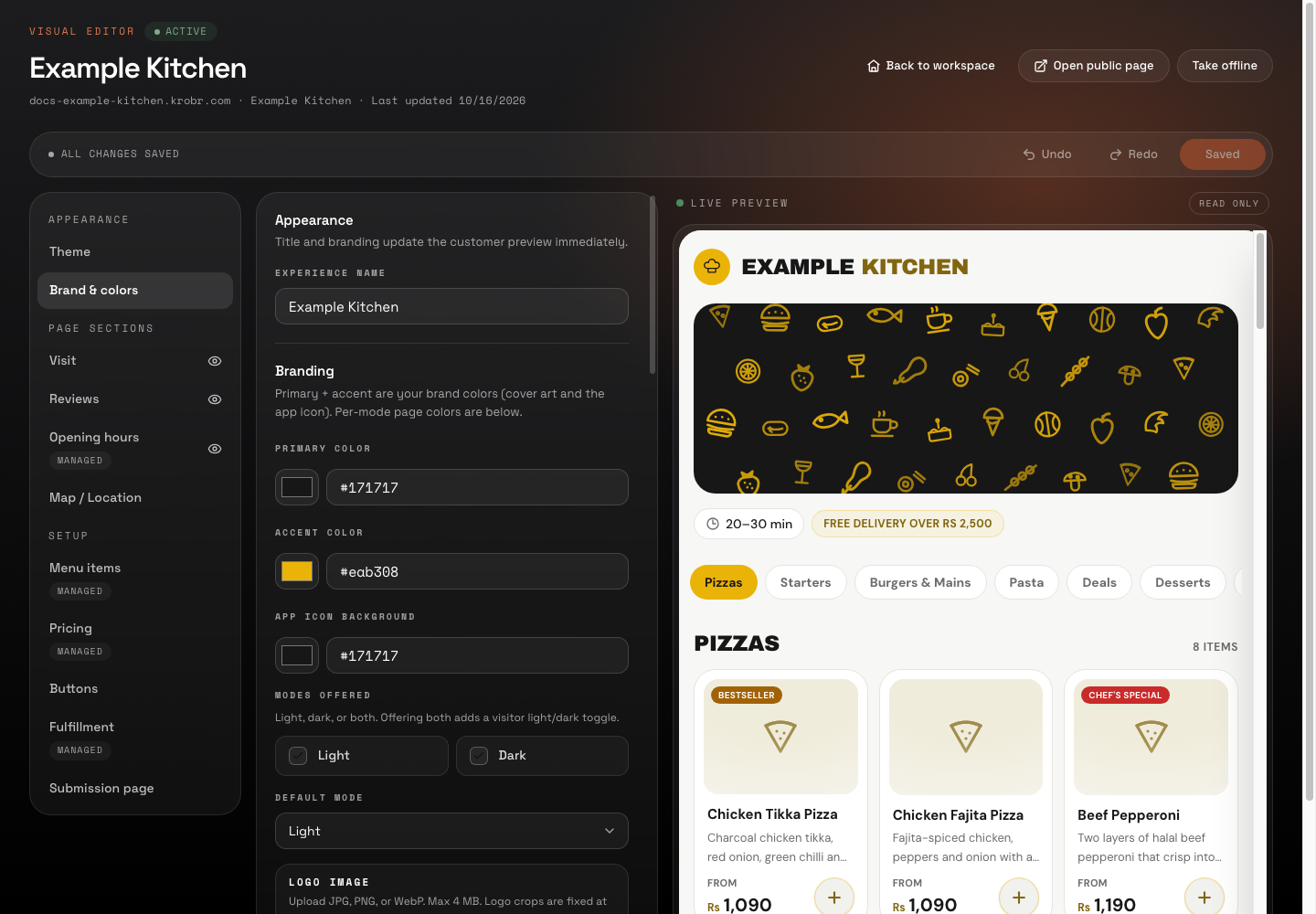
Set your brand, logo, covers, and image crop: find the controls in this example screen and follow the numbered instructions above.
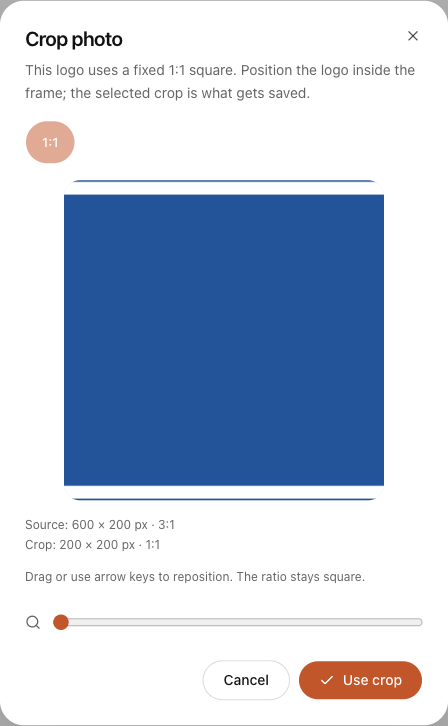
Logo uploads and URL imports use a fixed square crop. Source and Crop show the uploaded and saved dimensions.
Next steps
Default mode also offers System, which follows the visitor’s device preference when both modes are available.