What this guide helps you do
Understand the difference between your workspace, Krobr Partner, a customer storefront, and the focused Orders and Stock apps, so you start each task in the right place.
Before you start
You can read public guides without an account. To change a store, sign in to the account that owns it, has the required team permission, or is its assigned support partner with the required customer-granted access. A support-partner account has its own workspace.
Support partners have Experiences in their sidebar, or under More on a phone. Select an assigned customer to use the shared Experience list, details, editor and management flow with the permissions that customer allows.
Where to find it
On a computer, the workspace and Partner use a sidebar. On a phone, use the bottom tabs and More. Docs is in both sidebars and both More menus.
Links between Krobr apps open the real destination in a new tab: the public store address, Visual editor, Krobr Partner and Orders. Navigation inside the current app stays in this tab. Installed apps may open the system browser. Old workspace addresses still work.
Step by step
-
Open the workspace to see Dashboard, Business, Experiences, Billing & Usage, Notifications, and Settings.
-
Choose Experiences, then a store, to open its overview. Use Manage to open that store in Krobr Partner.
-
Use Partner for daily work: Menu or Products, stock, Orders, Hours, checkout settings, charges, promotions, reviews, messages, and reports.
-
Use Visual Editor from the store overview to change its presentation. Catalog panels point to Partner because products and stock are managed there.
-
Open the store's public web address to see what customers see. A customer's order-tracking link shows that customer's order; it is not the staff order queue.
-
For a dedicated device, install the store's Orders or Stock app from the Apps card. These focused apps use the same Partner operations with a smaller interface.
-
If your account is a support partner, use Overview, Requests, Earnings, Referral link, Email, Notifications, and Settings. Assigned customers can allow you to create and manage their Experiences; ownership stays with the customer and access follows their saved permissions.
-
Open Docs and select a topic or search the screen name. Choose Roman Urdu for the article if it is easier to read; this does not change your app preference. For Krobr screens, use Language / Zaban in workspace Settings or the full Partner account block, following Change Krobr app language.
In Experiences, use the row menu for View details, Visual editor, Visit live page, Krobr Partner, Orders, QR codes and Copy address. Options follow your access. The cross-app actions above open a new tab. A thin progress bar at the top means the next screen is loading; wait for it to finish before selecting again.
Understand the choices
-
Workspace is your account hub. Partner is the operating area for an individual store.
-
Your account can have different access to different stores. A Shared badge means another owner gave you permissions.
-
Restaurant and Product Catalog are the two launchable categories. Travel and Service Catalog are coming soon; they are not usable store-creation options.
-
A different web address can require its own sign-in. Follow the normal sign-in or Continue to… prompt rather than assuming an installed app shares every browser login.
Check the result
You know which app owns your task and can return to that screen through the navigation. If you selected the wrong store in Partner, use the store switcher before changing anything.
If something goes wrong
If two apps have different accounts signed in, choose which account to continue with. An unavailable page shows the current email and offers Switch account or Go to my stores. Recover access to the same page.
-
Cannot see an entry: check your account type and team permissions. Internal platform guides appear only when you have the matching access.
-
A store is missing: confirm you signed in with the invited email, accepted the invitation, and verified that address.
-
A link opens the browser from an installed app: some cross-app links deliberately open another app or tab. Krobr reuses your workspace sign-in for Partner and the editor; sign in normally if that session has expired.
Screenshots
These screenshots use demonstration data. Your names, amounts and available controls may differ. Current values on your own screen take priority.
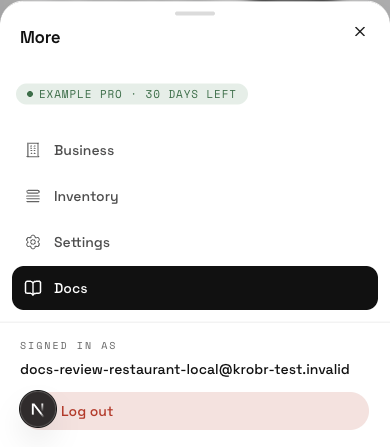
Open More on a phone to reach Docs and the other account screens.
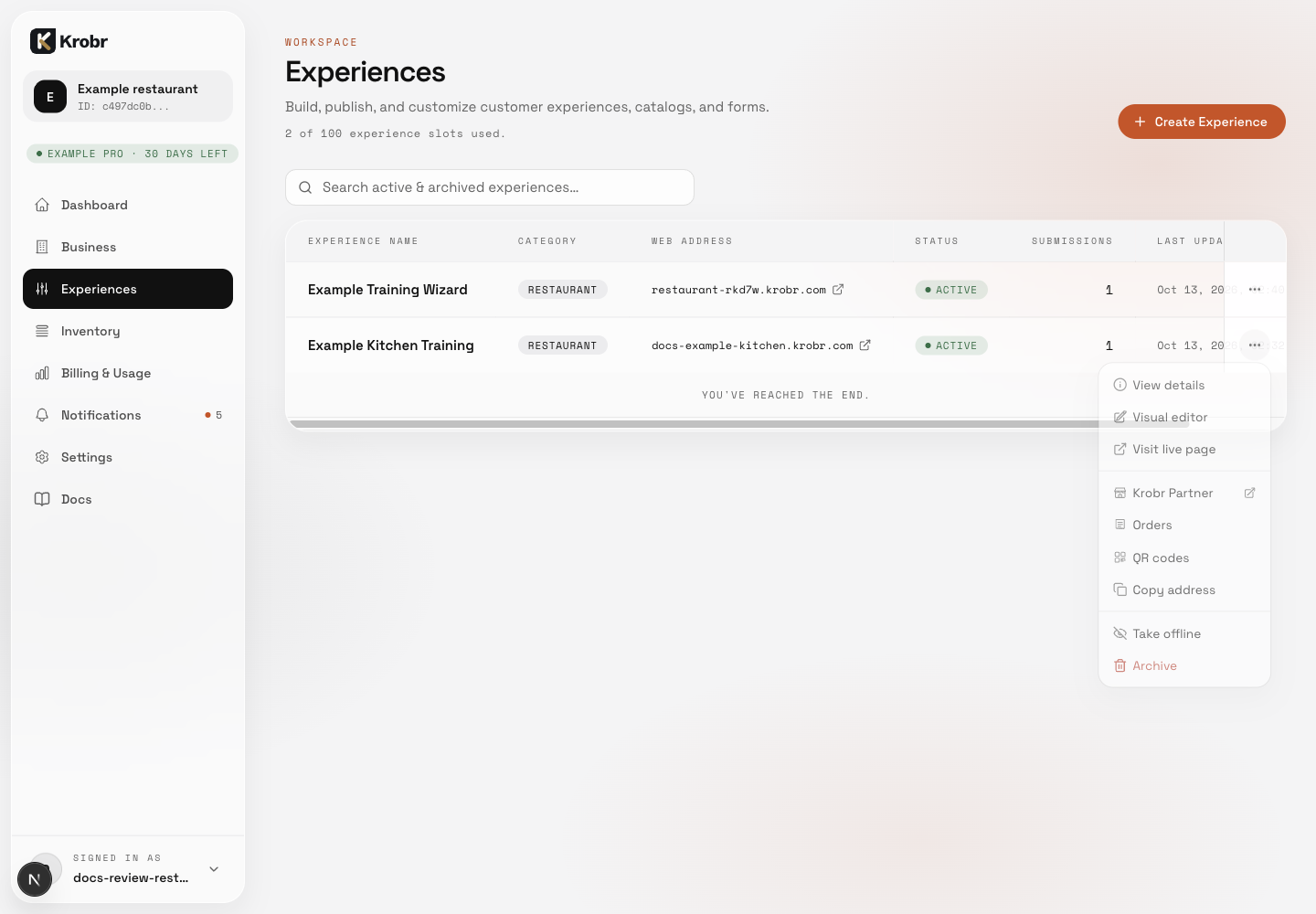
Find the right Krobr app and screen: find the controls in this example screen and follow the numbered instructions above.