What this guide helps you do
Give each person the store access they need and remove it when their work ends.
Before you start
The store owner manages sharing. Check the package's team-seat allowance and use the person's own email, never a shared owner password.
Where to find it
Workspace: Experiences → open the store → Access. Partner: open the store → Members (Users & roles); on a phone use More → Members.
Step by step
-
In Access, enter Teammate's email exactly as they use it to sign in.
-
Under What they can do, select Edit design, Manage inventory, View submissions, or Manage submissions as needed. Select at least one.
-
Choose Share access. For Partner's Members screen, use Add a person, enter Email, choose Role, inspect its permissions and submit the form.
-
Ask the person to sign up or sign in using that email and verify it. A pending invitation becomes active after the matching verified account is available.
-
Open People with access or Members and confirm the correct person, pending/active state and permissions.
-
To end access, select Remove and confirm Remove access, or use Remove member in Partner. Cancel invite removes a pending invitation.
Understand the choices
-
Edit design changes presentation. Manage inventory changes catalog/stock. Viewing an order does not automatically allow changing it.
-
Manage submissions includes operational order actions; give it only to people handling orders.
-
Owner-only actions such as archiving, permanent deletion, addresses and billing stay with the owner. Store roles are different from Krobr platform staff roles.
-
Removing access does not transfer ownership or erase the person's own account.
Check the result
The teammate sees this store after signing in and only the controls their permissions allow. Confirm using their account, without sharing passwords.
If something goes wrong
If an invited person sees an unavailable-page message, check the signed-in email shown there. Switch account returns to the requested page; it does not grant permission. Choose the correct account.
-
Share access disabled: enter a valid email and select a permission. A seat limit requires removing unused access or requesting a package change.
-
Still pending: check spelling, the account's verified email and a fresh sign-in. Do not repeatedly invite different addresses.
-
No Members tab or Remove button: you lack the relevant owner/access permission. Ask the store owner to make the change.
Support partner access
Support partners do not need a teammate invitation or team seat. Their access comes from current customer assignment and the owner’s Support partner access controls. Partners cannot change staff invitations or permissions.
Screenshots
These screenshots use demonstration data. Your names, amounts and available controls may differ. Current values on your own screen take priority.
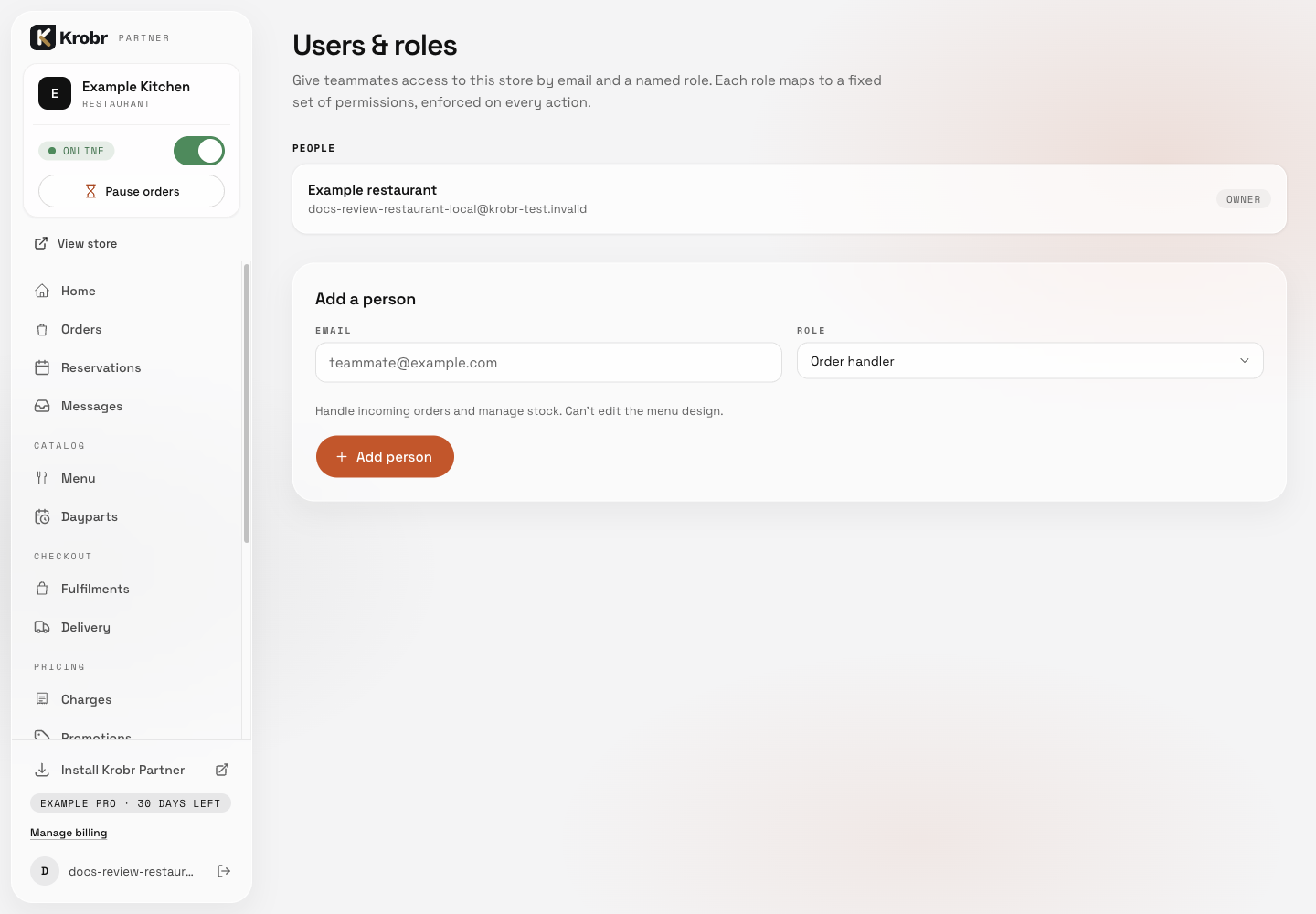
Invite a teammate and control access: find the controls in this example screen and follow the numbered instructions above. Retained English example from 13 October 2026. The Partner account area now also includes Language, which is not shown in this dated sidebar; follow the numbered steps for the current screen.