What this guide helps you do
Use Krobr's public website to compare packages, preview themes, join a waitlist or submit an inquiry.
Before you start
You can browse without signing in. Keep a real contact email ready for applications; submission does not create a paid account or guarantee acceptance.
Where to find it
Open Krobr's public website. Use Pricing, Themes and the navigation/footer links; on a phone open the site menu for links.
Workspace Open public page and Visit live page links open the actual storefront address in a new tab, using an ACTIVE custom domain when available. The workspace tab remains open.
Step by step
-
Open Pricing and choose the displayed currency and monthly/yearly period. Compare included features and limits before choosing a package.
-
Open Themes, select a launchable category and preview a theme. Restaurant and Product Catalog can launch; Travel and Service Catalog are currently unavailable.
-
Use the waitlist form only for the offering shown. Enter the requested contact details and submit once.
-
For the support-partner program, open the affiliate application, read the requirements and enter the requested contact/business information accurately.
-
For Enterprise, open its inquiry form and describe your needs and contact details. It is an inquiry rather than immediate purchase.
-
Read Privacy and Terms from the footer before submitting or creating an account. Use Docs for step-by-step product guidance.
Understand the choices
-
Pricing reflects the current public catalog. A missing currency/period price means that option is unavailable.
-
Theme previews demonstrate appearance; your catalog, checkout choices and package still determine your store's behavior.
-
Waitlist, affiliate application and Enterprise inquiry have different purposes. Use the matching form and expect its displayed confirmation.
Check the result
You understand the displayed package/theme choices and see a successful confirmation for any form you submit.
If something goes wrong
-
No launch button for Travel/Service Catalog: those categories are not currently available for launch.
-
Form error: correct the highlighted fields and submit once after resolving them.
-
No application decision yet: confirmation records the inquiry; it is not an approval or commission entitlement.
Screenshots
These screenshots use demonstration data. Your names, amounts and available controls may differ. Current values on your own screen take priority.
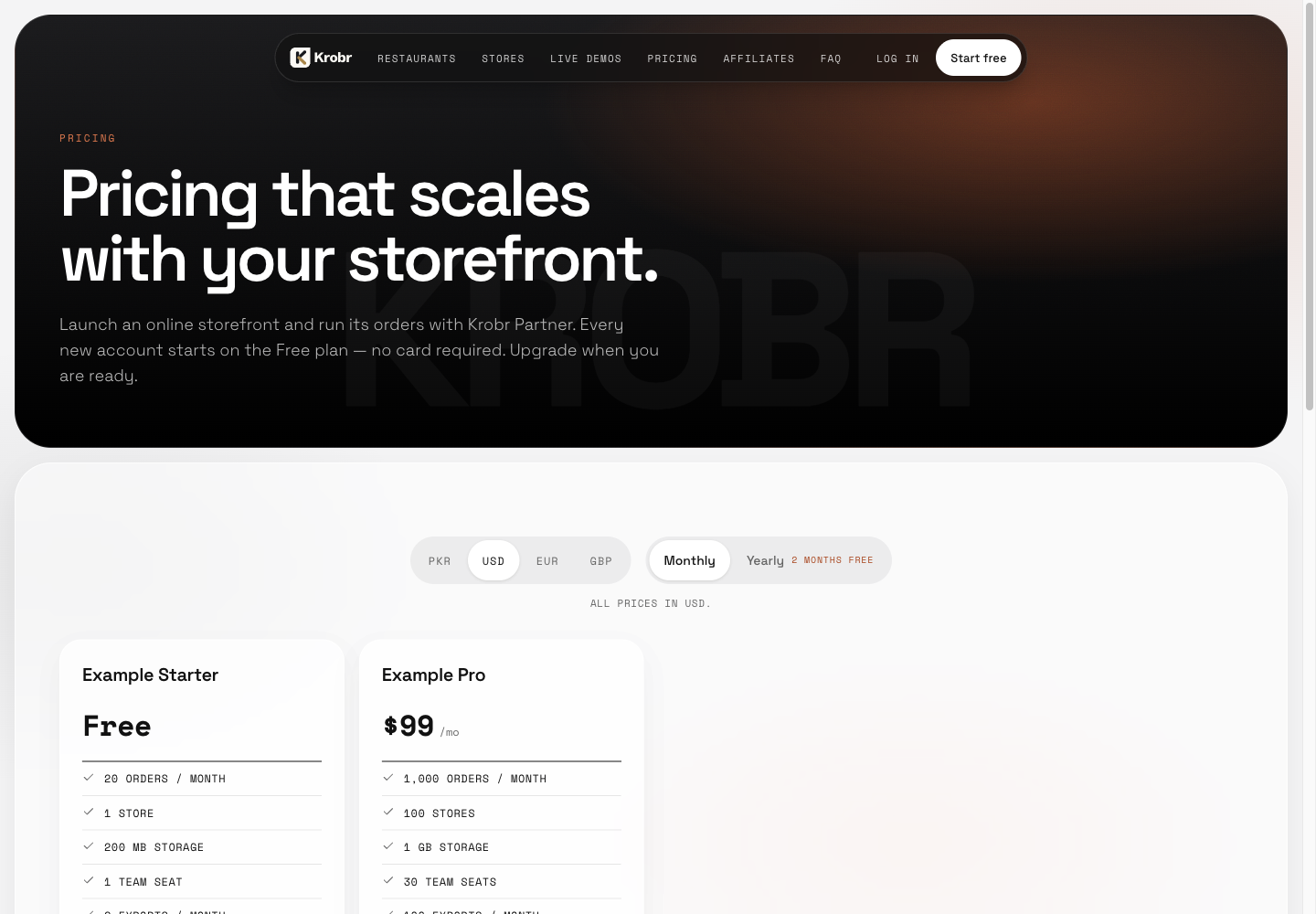
Explore pricing, themes and Krobr programs: find the controls in this example screen and follow the numbered instructions above.