What this guide helps you do
Copy a theme-matched image prompt, create a picture in your chosen image generator and bring the finished file back into Krobr.
Before you start
Have permission to edit the relevant image and access to an image generator if you want to use one. The helper copies text; it does not generate or upload an image itself.
Where to find it
In a supported image picker in the Visual Editor or Partner product editor, open AI image prompt. On phones scroll within the image control to find it.
Step by step
-
Open the image control for the intended slot, such as a product photo, cover or gallery image.
-
Choose AI image prompt and read the text. It is tailored to the slot and selected theme; check that it describes the picture you need.
-
Choose Copy prompt and look for Copied. If copying fails, select the text and copy it manually.
-
Open the image generator you use, paste the prompt and adjust it to truthfully match your actual product/business.
-
Download the resulting supported image, then return to Krobr and Upload it through the normal image picker.
-
Review the crop, confirm the image, save the parent editor and inspect the result on phone and computer.
Understand the choices
-
The prompt text is a suggestion; it does not guarantee a particular picture or change the store's theme.
-
The image generator's own availability, costs and controls are outside this helper. Krobr's file limits and permissions still apply to the uploaded result.
-
The helper is available only for declared image slots/themes. You can upload an ordinary photo without using it.
Check the result
The prompt is copied and any resulting image is saved in the correct image slot after the normal upload/crop/save flow.
If something goes wrong
-
No helper: the current slot/theme may not offer one; use your own image through Upload.
-
Couldn't copy: select the read-only prompt text manually and copy.
-
Image not visible: complete the upload confirmation and parent Save; copying the prompt alone does not change an image.
Screenshots
These screenshots use demonstration data. Your names, amounts and available controls may differ. Current values on your own screen take priority.
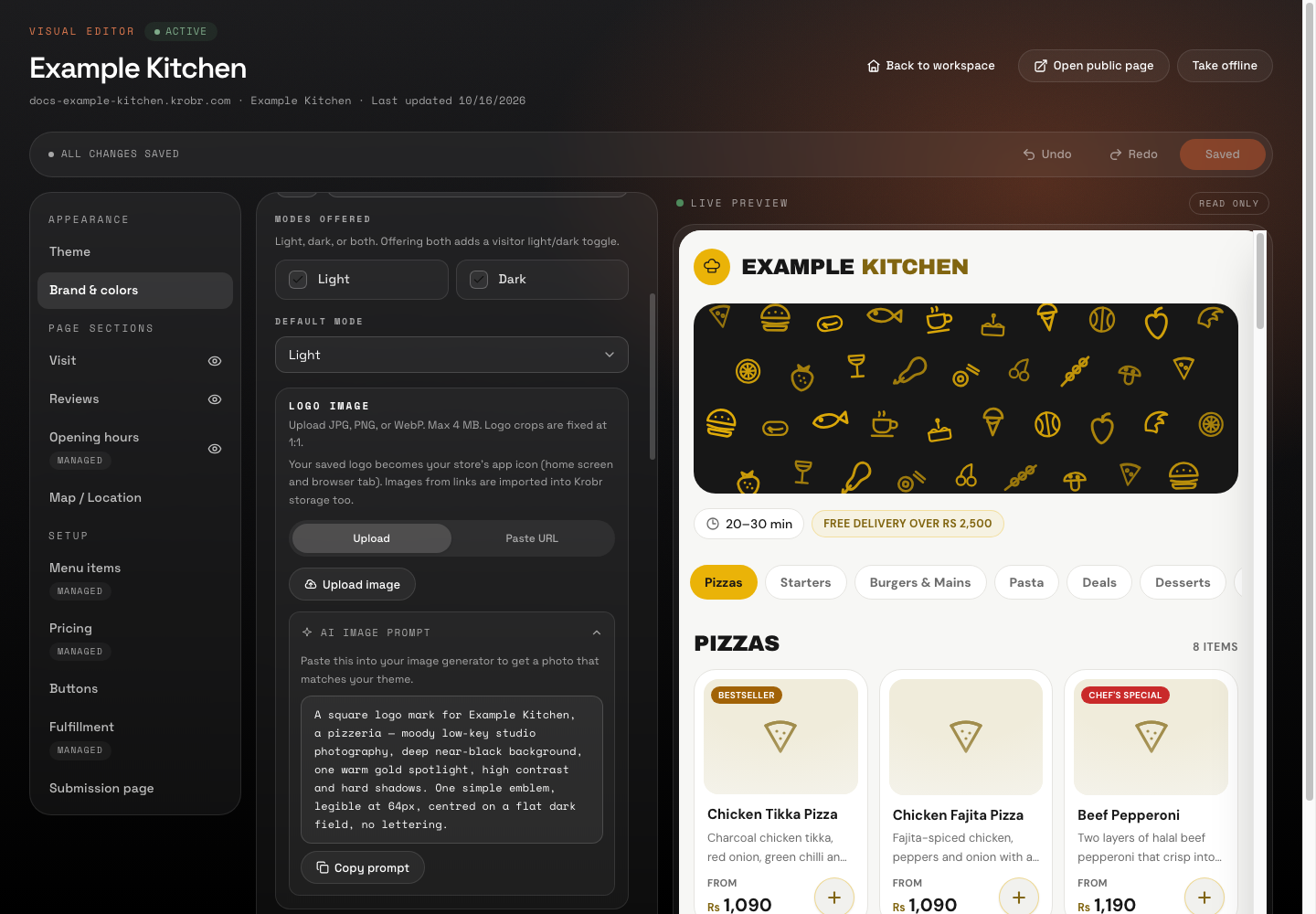
Use the AI image prompt helper: find the controls in this example screen and follow the numbered instructions above.