What this guide helps you do
Search Krobr's guides, switch between English and Roman Urdu, and open the exact steps for your task.
Before you start
Public guides are available without signing in. Sign in with your own authorized account for any protected operating guides. You can ask in English, Roman Urdu or a mixed phrase.
Where to find it
Public site: Docs in the footer. Workspace and Partner: Docs in the computer navigation; on a phone open More → Docs. Orders/Stock apps offer Docs from their top bar.
Step by step
-
Open Docs and choose English or Roman Urdu from its article-language control. This chooses the language of the guides, not your saved Krobr app preference.
-
In What do you need help with?, enter a question or screen/feature name. For example, type product photo or tasveer crop. Search updates as you type; Search runs it immediately.
-
Use Browse topics, Who it's for, Store type and Storefront theme to narrow the guides. Clear filters removes those restrictions.
-
Choose a suggested phrase if it matches your task. Minor spelling mistakes can still find a guide.
-
Open a result. Its heading link takes you to the relevant part; use In this guide to jump to another section.
-
Read Before you start, then follow Step by step. Verify the result with Check the result and use If something goes wrong for recovery.
-
Switch the article language while reading to keep the same article. To change Krobr screens instead, follow Change Krobr app language. Follow Related guides or All guides when moving to another task.
-
If no result appears, try the visible screen name or a shorter phrase and browse the topics offered.
Understand the choices
-
Filters can exclude a correct guide. Clear them if you are unsure of the category or theme.
-
A result excerpt highlights matching words. Open the full article before following instructions.
-
Private guides and screenshots appear only with the required access. Search cannot grant a permission missing from your account.
-
Last reviewed records when the guide was reviewed. Current package/fee panels read current approved settings; use them instead of amounts in an old picture.
Check the result
You reach a guide for the intended task, in your chosen language, with readable numbered steps and a direct section link.
If the app shows Something went wrong, check your connection and use Try again once. If a Digest ID is displayed and the same problem remains, keep that reference with the steps you took. Recheck an order or payment’s state before repeating its action.
If something goes wrong
-
Nothing found: shorten the phrase, use the app label and clear filters. Search only considers guides you can access.
-
Search didn't load: reconnect and try again; topic browsing remains available.
-
Guide not found through a direct link: check the language/slug and your authorized account. Use All guides to find currently available content.
Screenshots
These screenshots use demonstration data. Your names, amounts and available controls may differ. Current values on your own screen take priority.
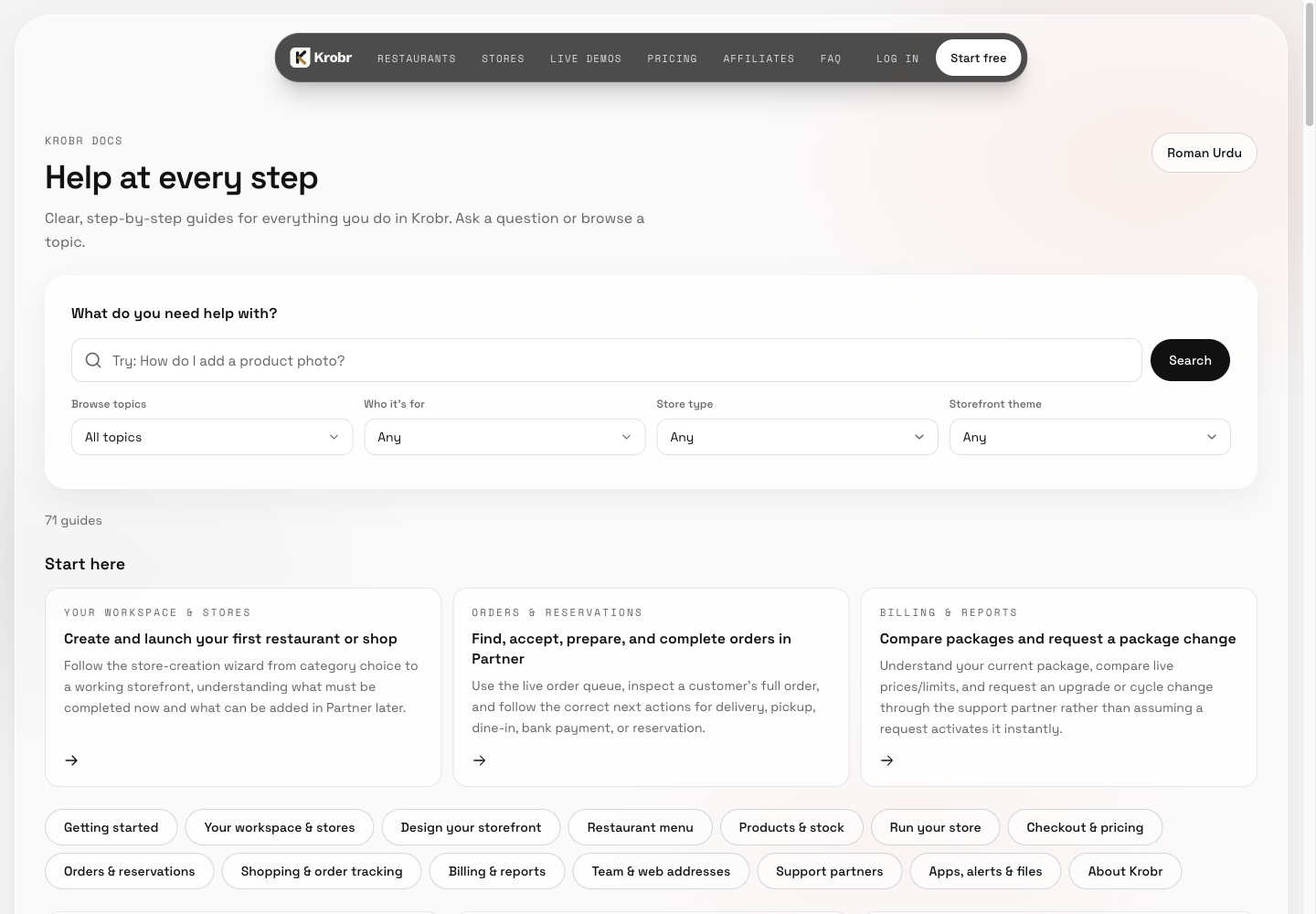
Retained English Docs search and topic-entry example from 13 October 2026. The guide count reflects that capture, not the current library.
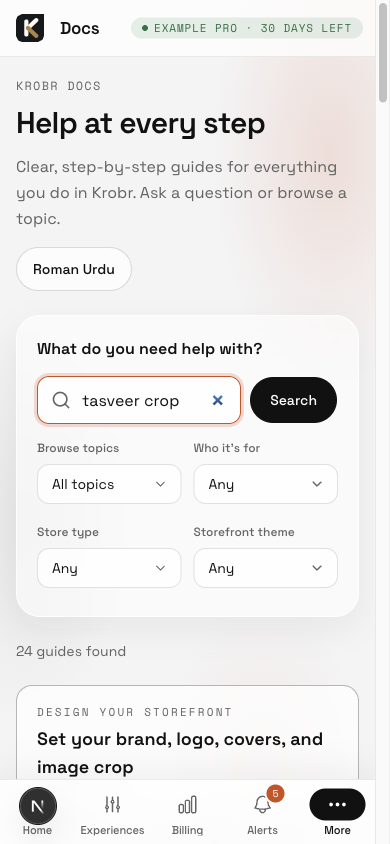
Retained mixed-language tasveer crop search example. Result count and ranking are dated; this does not demonstrate the personal app-language control.