What this guide helps you do
Create retail products with a clear category home, optional subcategories, and collections such as New arrivals or Summer sale without duplicating products.
Before you start
Use Manage inventory access in a Product Catalog store. Plan a shallow category structure and prepare names, descriptions, and prices. Each product belongs to one category/subcategory but can be in several collections.
Where to find it
Partner → Products for categories and products; Partner → Collections for cross-category groups. On a phone use Products or More → Collections.
Step by step
-
Open Products and add a top-level category using New category → Add category.
-
If needed, use the category's subcategory action to add one child level. A subcategory cannot have another subcategory below it.
-
Choose the add-product action in the intended category. Fill Name, Description, and Category, then add Photos or the offered fallback Icon.
-
Set a simple product's price, or configure dimensions/SKUs for choices such as size and color. Add a higher Compare-at price only when it truthfully represents the earlier/reference price.
-
Use Tags and Badge label/color for useful descriptions. A badge alone does not apply a discount.
-
Save the product. Use category/subcategory reorder controls and Search products to organize a growing catalog.
-
Open Collections, enter a collection name, and add it. Choose Manage products for that collection.
-
Select the products that should belong to the collection and save through the membership editor. A product may belong to several collections while keeping its category home.
-
Rename or reorder collections as needed. Removing a collection removes that grouping, not the underlying products.
-
Open the storefront's category/collection browsing and check where the product appears. Theme-specific navigation can present the same hierarchy differently.
Understand the choices
-
Category → Subcategory has two levels at most. Collections are independent groupings across those categories.
-
Compare-at price is a reference/was price. The active SKU price remains the amount used for the product's base price.
-
Tags help customers search. Badges are text/color labels; promotions are configured separately.
-
Delete product is different from making it unavailable. Read the confirmation before removing catalog records.
Check the result
Each product has the correct category home and appears in the selected collections. The storefront shows the saved product details and prices without duplicate product records.
If something goes wrong
-
Category is required but none exist: add a category before saving the product.
-
Cannot add a third level: use collections or a clearer two-level structure.
-
Product missing from a collection: check membership, product/category visibility, and the theme's collection feature.
-
A duplicate name is rejected: choose a distinctive category/collection/value name and follow the field's message.
Screenshots
These screenshots use demonstration data. Your names, amounts and available controls may differ. Current values on your own screen take priority.
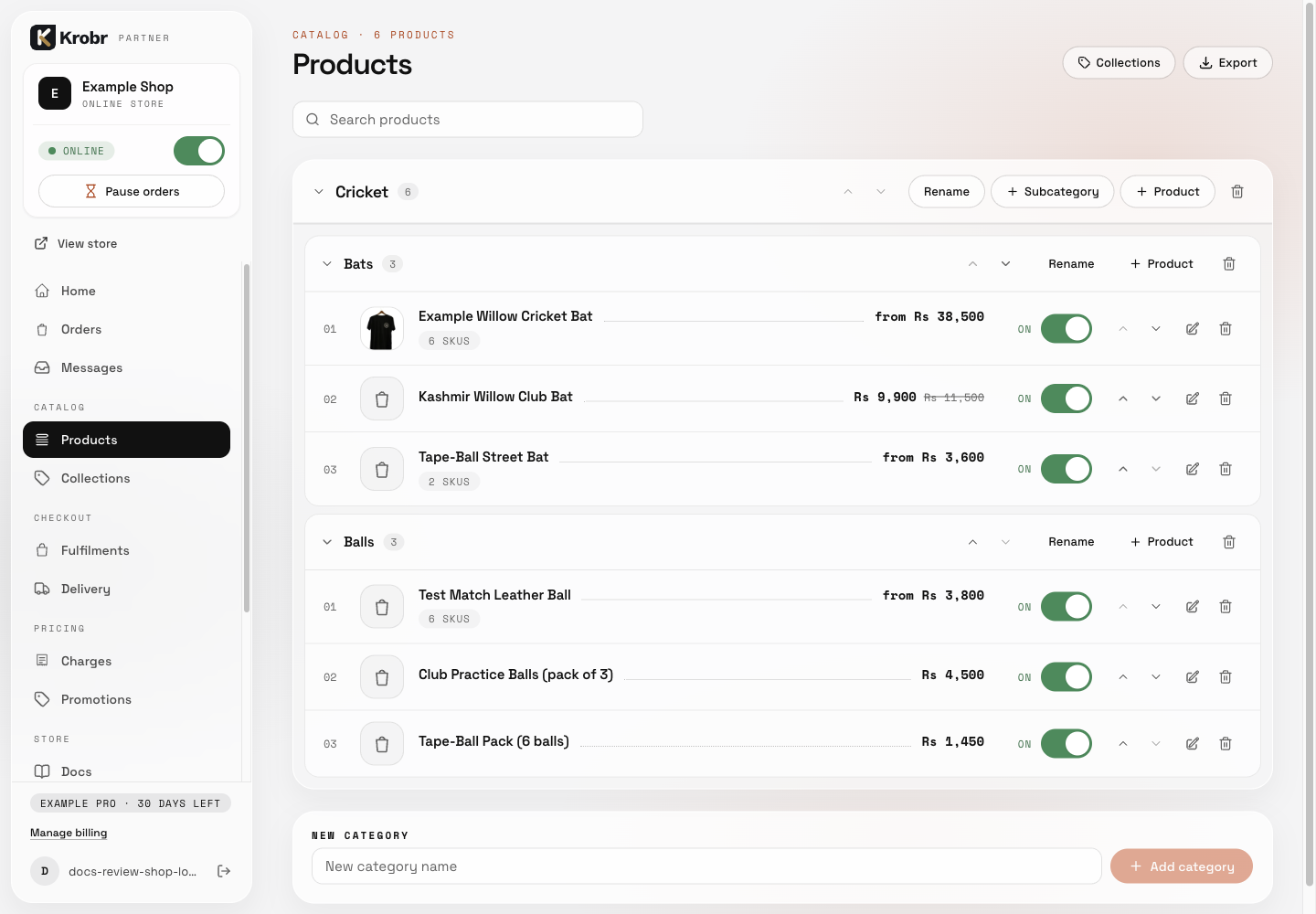
Organize shop products, categories, subcategories, and collections: find the controls in this example screen and follow the numbered instructions above. Retained English example from 13 October 2026. The Partner account area now also includes Language, which is not shown in this dated sidebar; follow the numbered steps for the current screen.
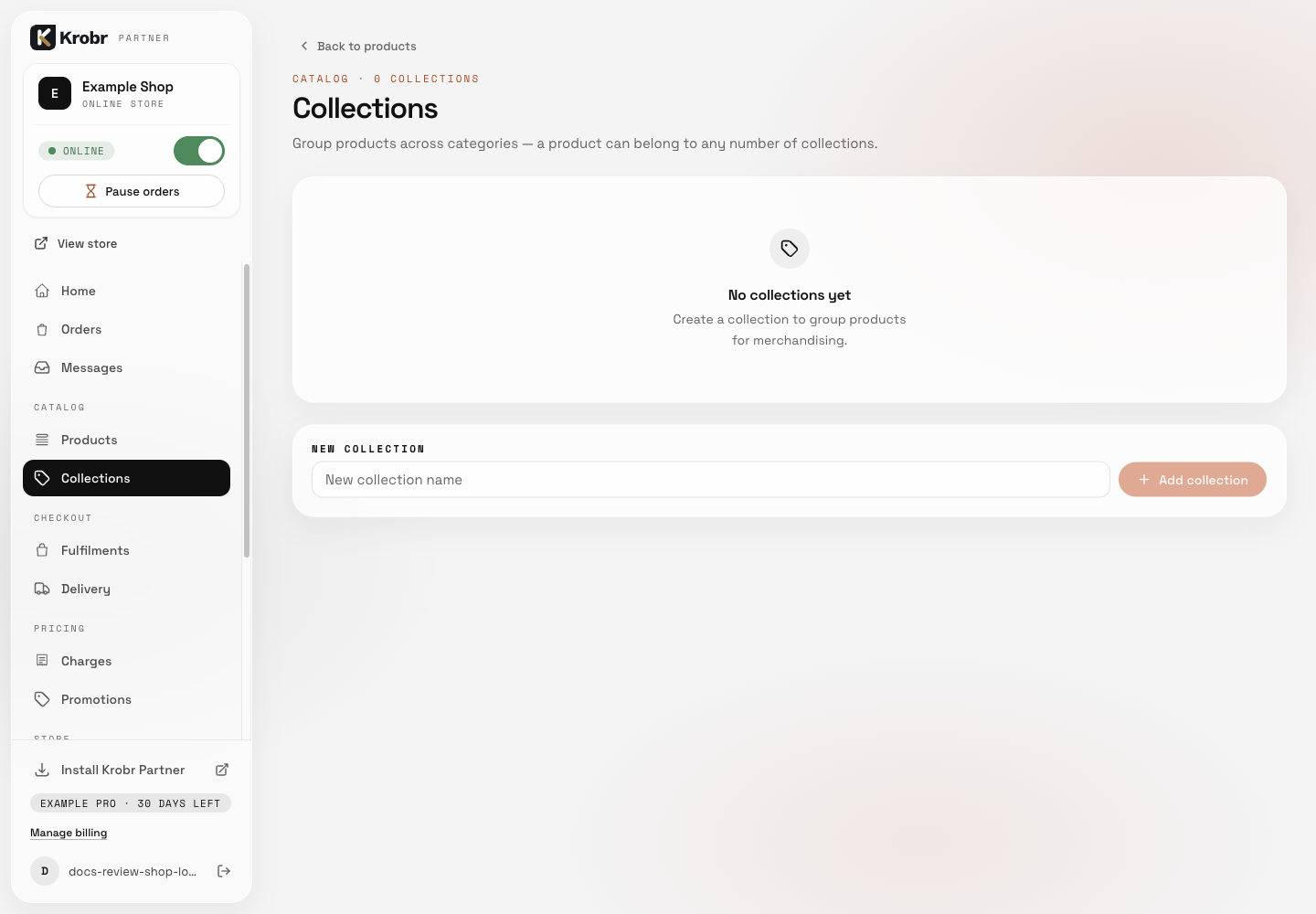
Organize shop products, categories, subcategories, and collections: find the controls in this example screen and follow the numbered instructions above. Retained English example from 13 October 2026. The Partner account area now also includes Language, which is not shown in this dated sidebar; follow the numbered steps for the current screen.